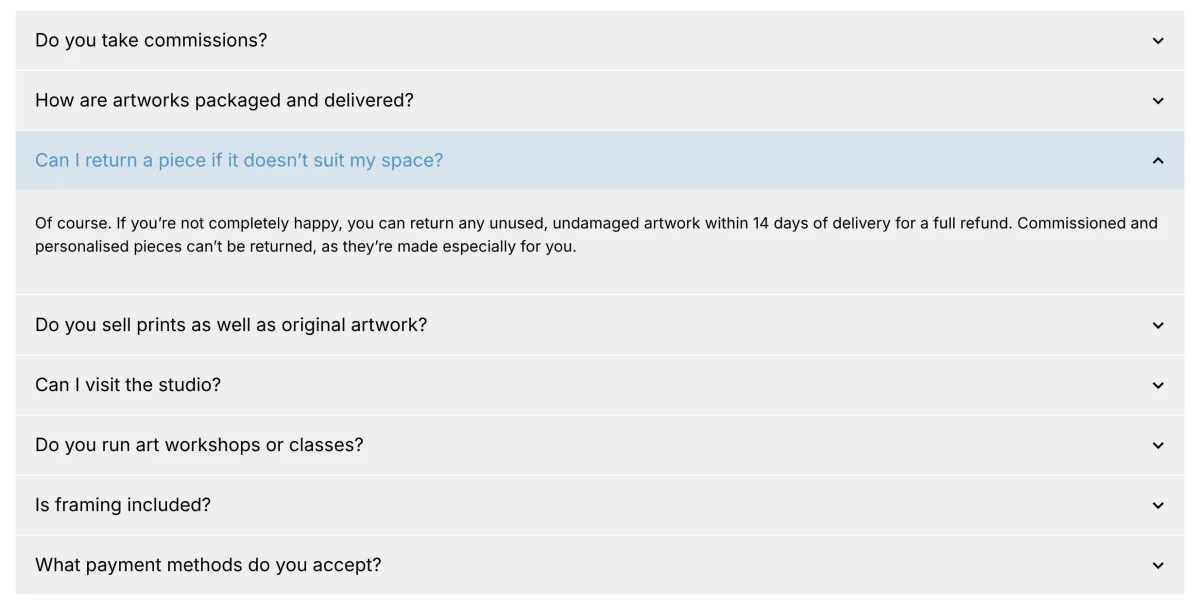
Adding an accordion on a page
An accordion shows a list of headings that visitors can click to open and close. It is ideal for FAQs, opening hours, policies or any content that would otherwise make a page very long.
In Zenario you build an accordion with a nest. Each slide in the nest becomes one accordion panel: the slide's title is the clickable heading, and the plugins on the slide are the content that opens underneath.
Start by inserting a nest on the page. Then set it to display as an accordion, and add one slide per panel.
Inserting a nest on the page
- Select the "Tools" mode on the Admin Toolbar.

- Click on the icon to Show mobile and empty slots.

- In the page, find an empty slot where you want the accordion to appear, and select "Insert..".
If prompted, make a draft.
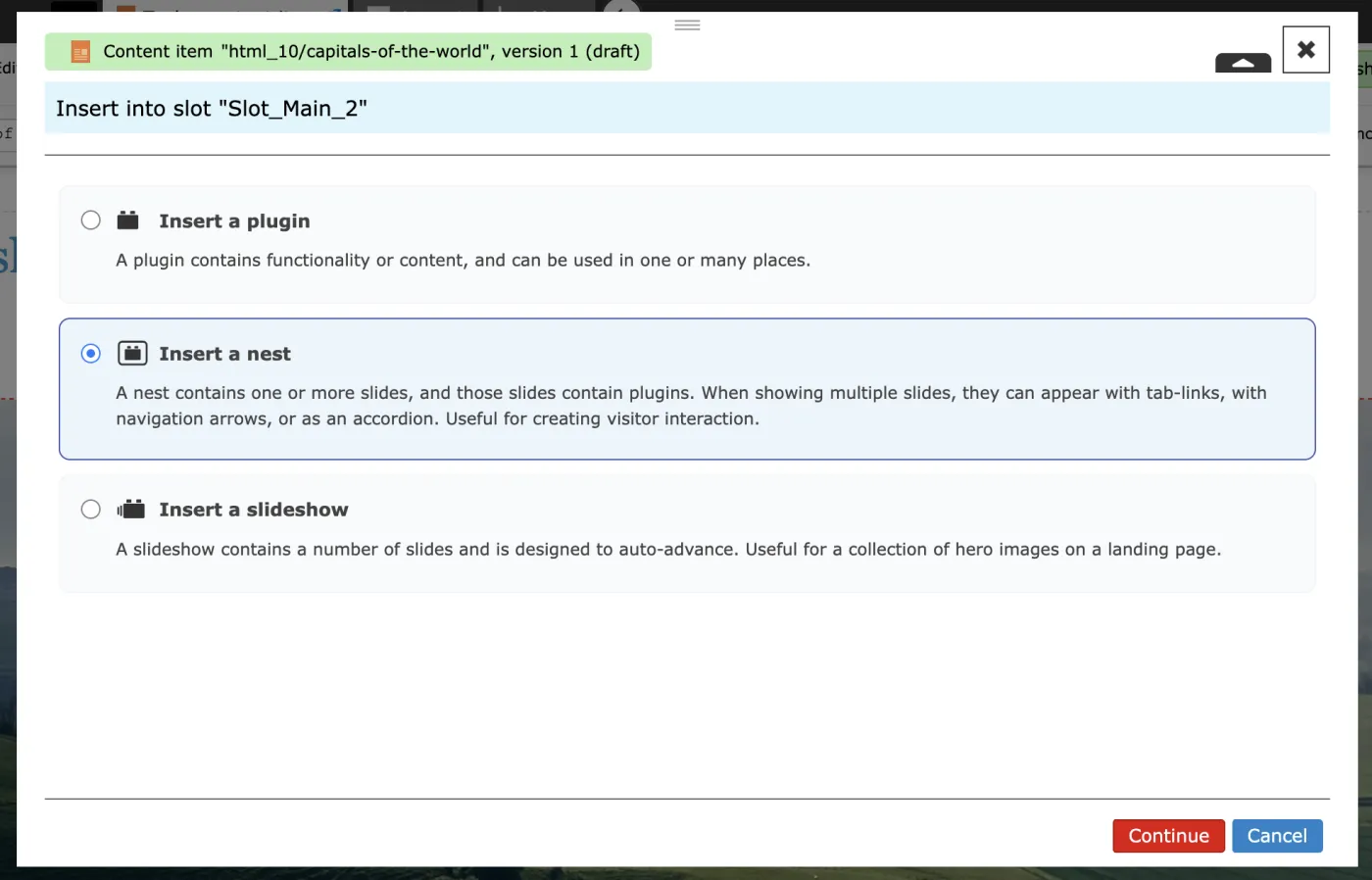
- Choose Insert a Nest from the list, and click the 'Continue' button.
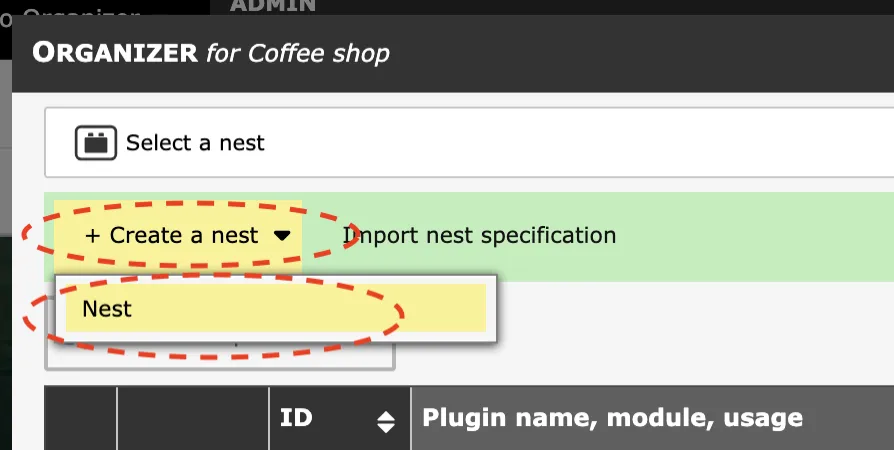
- Click '+ Create a new nest' button and select 'Nest'.
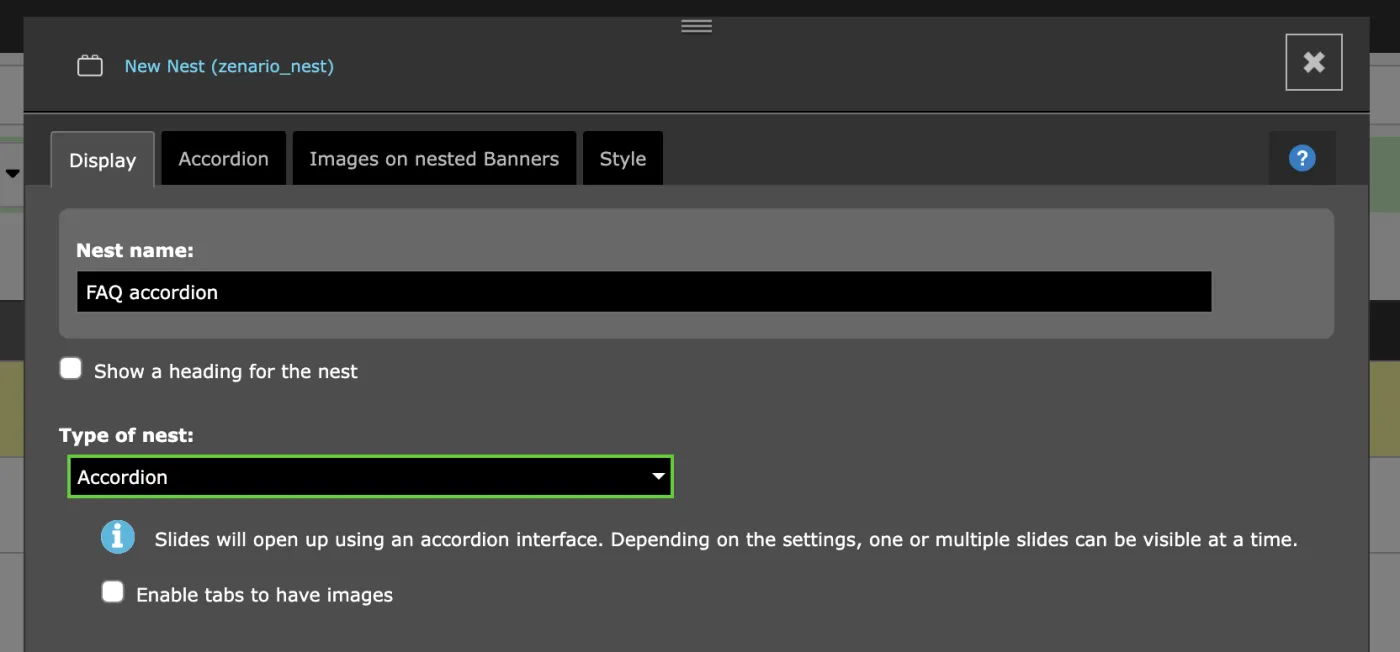
- Enter a Nest name for it, for example "FAQ accordion". For the Type of nest select Accordion.
- On the Accordion tab, choose whether the first panel should be open when the page loads, or whether all panels start closed.
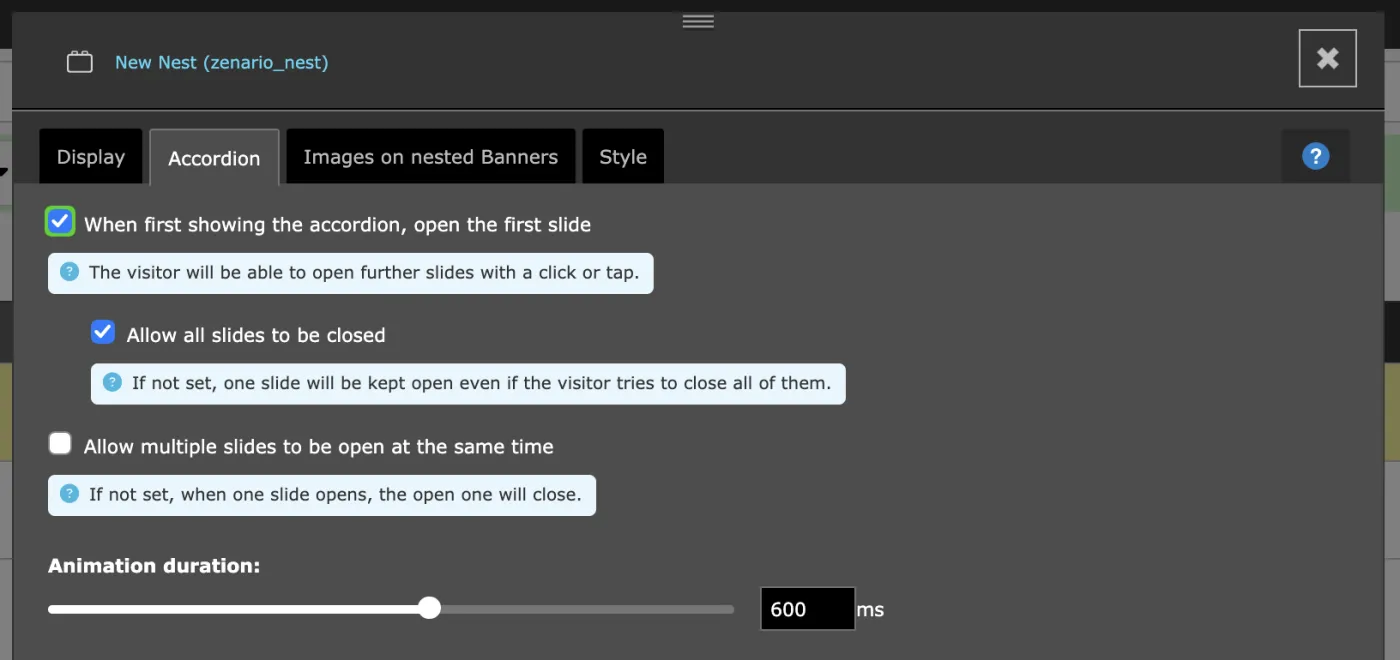
- Click the "Save" button.
- Click the "Insert nest" button.
Adding panels to the accordion
Each slide in the nest is one panel of the accordion.
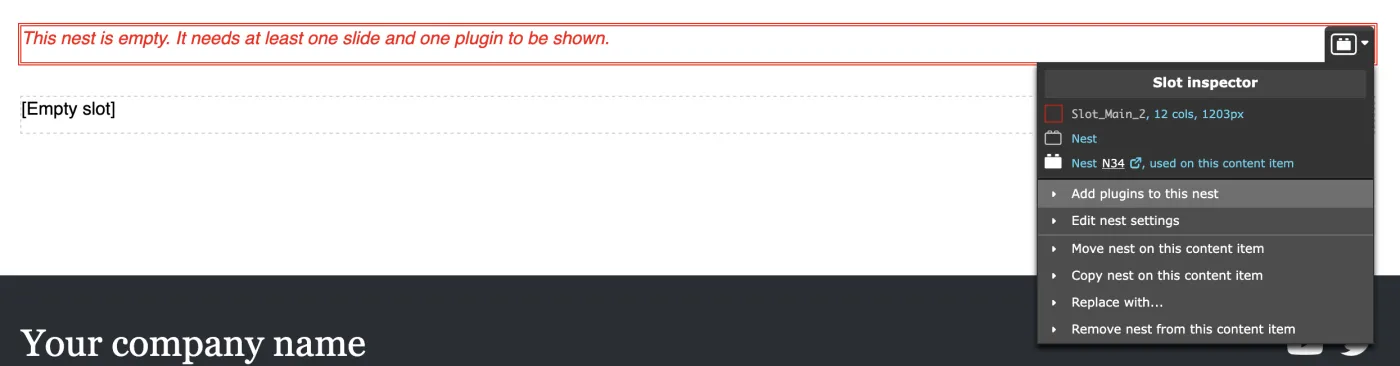
- Hover over the nest on the page and open its menu. Select Add plugins to this nest to manage its slides and plugins.
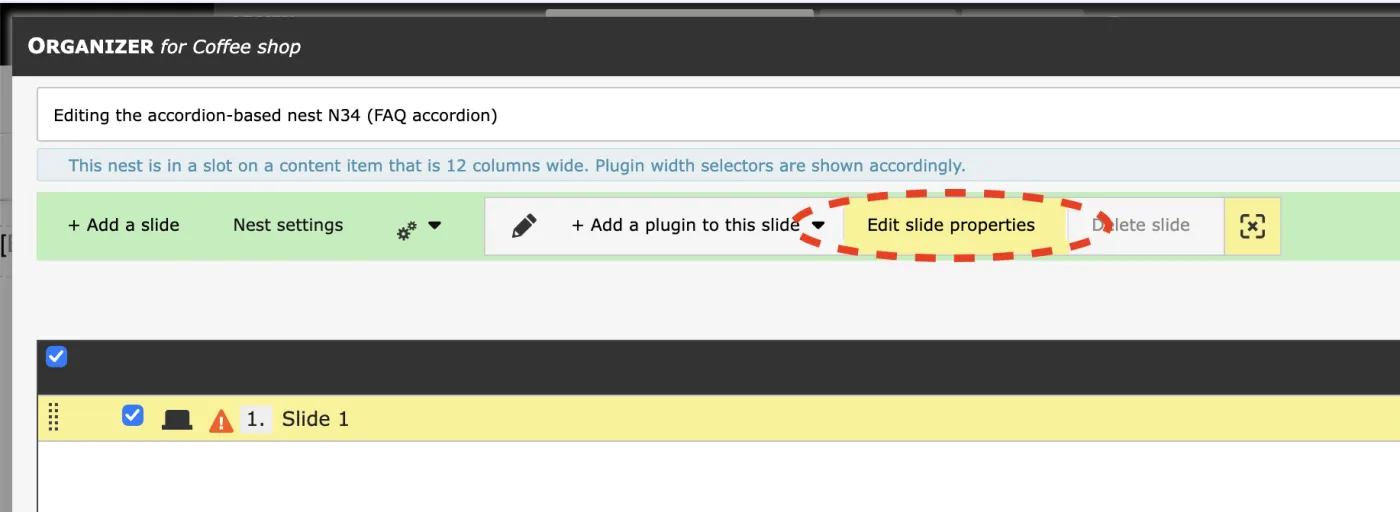
- Edit the 'Slide 1' by clicking the "Edit slide properties" button.
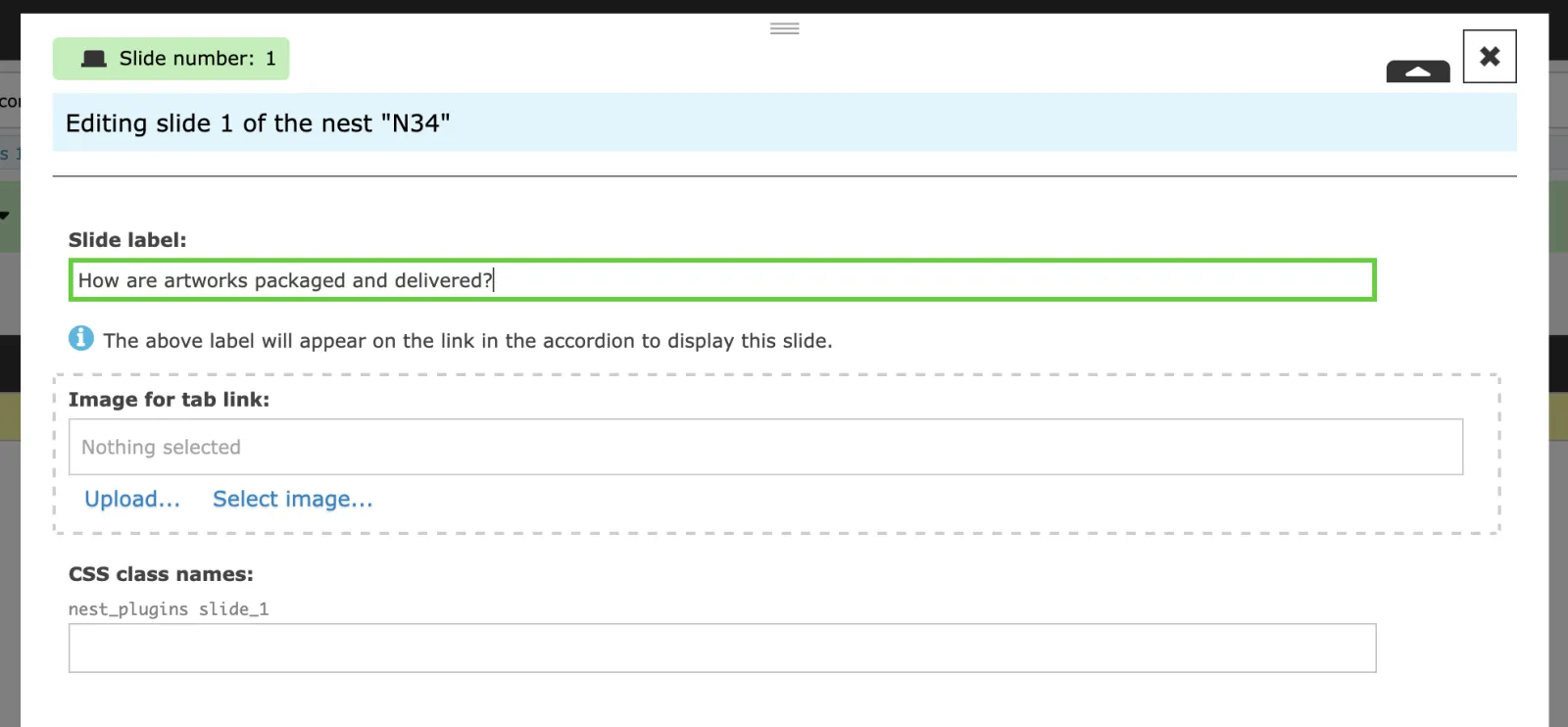
- Enter the Slide label. This is the heading visitors will click, so keep it short and clear, for example: 'How are artworks packaged and delivered?'. Then click the "Save" button.
- Add a plugin to the slide to hold the panel's content, such as a WYSIWYG editor or Banner plugin, and enter the text.
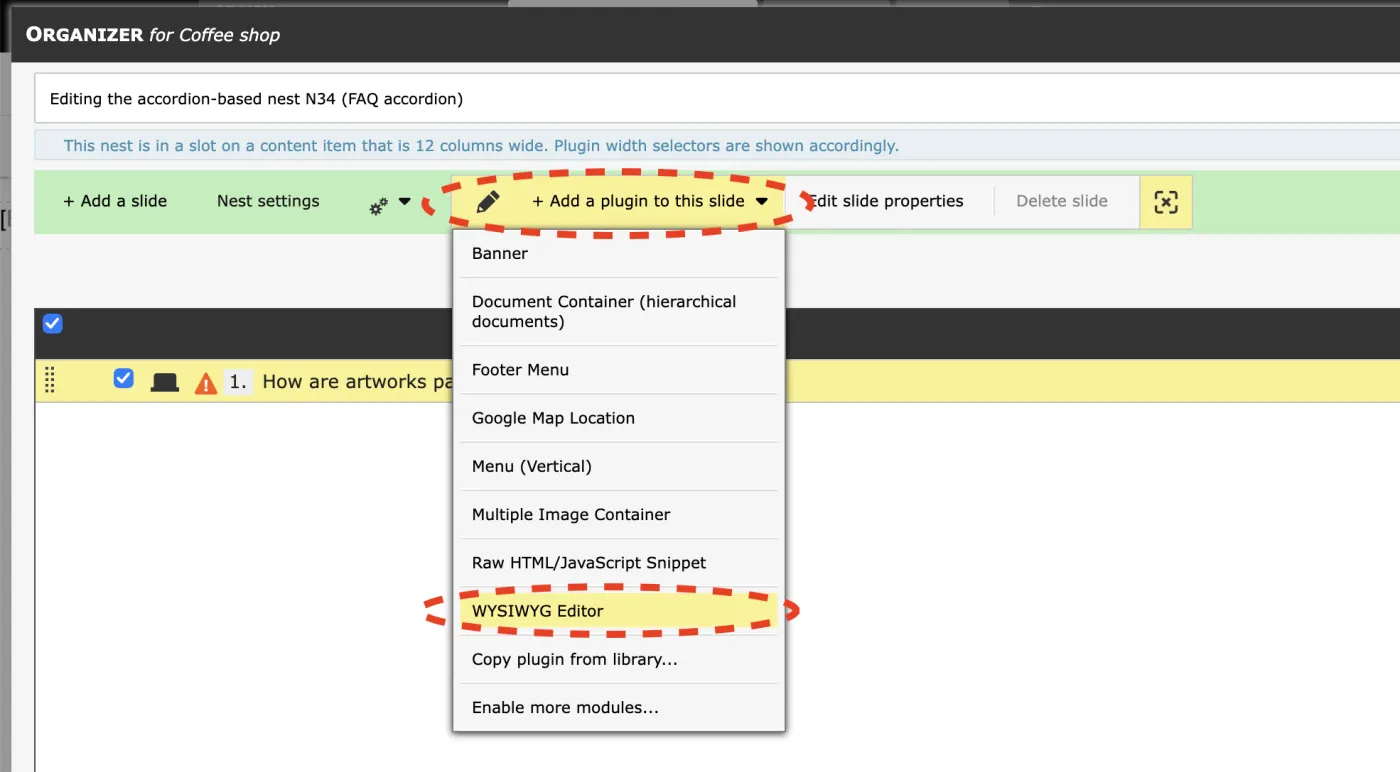
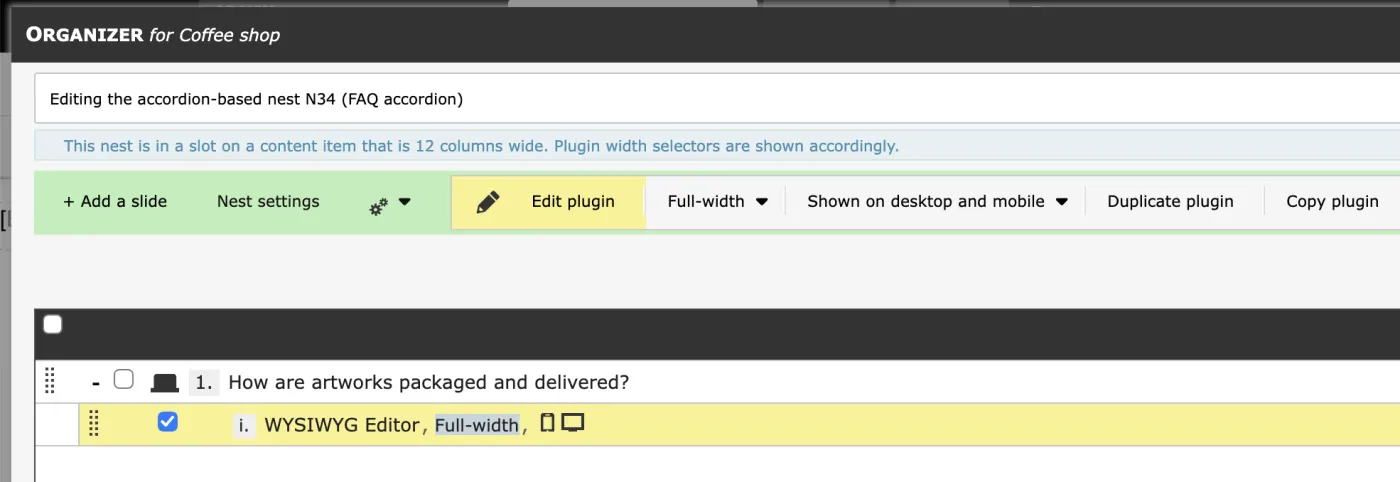
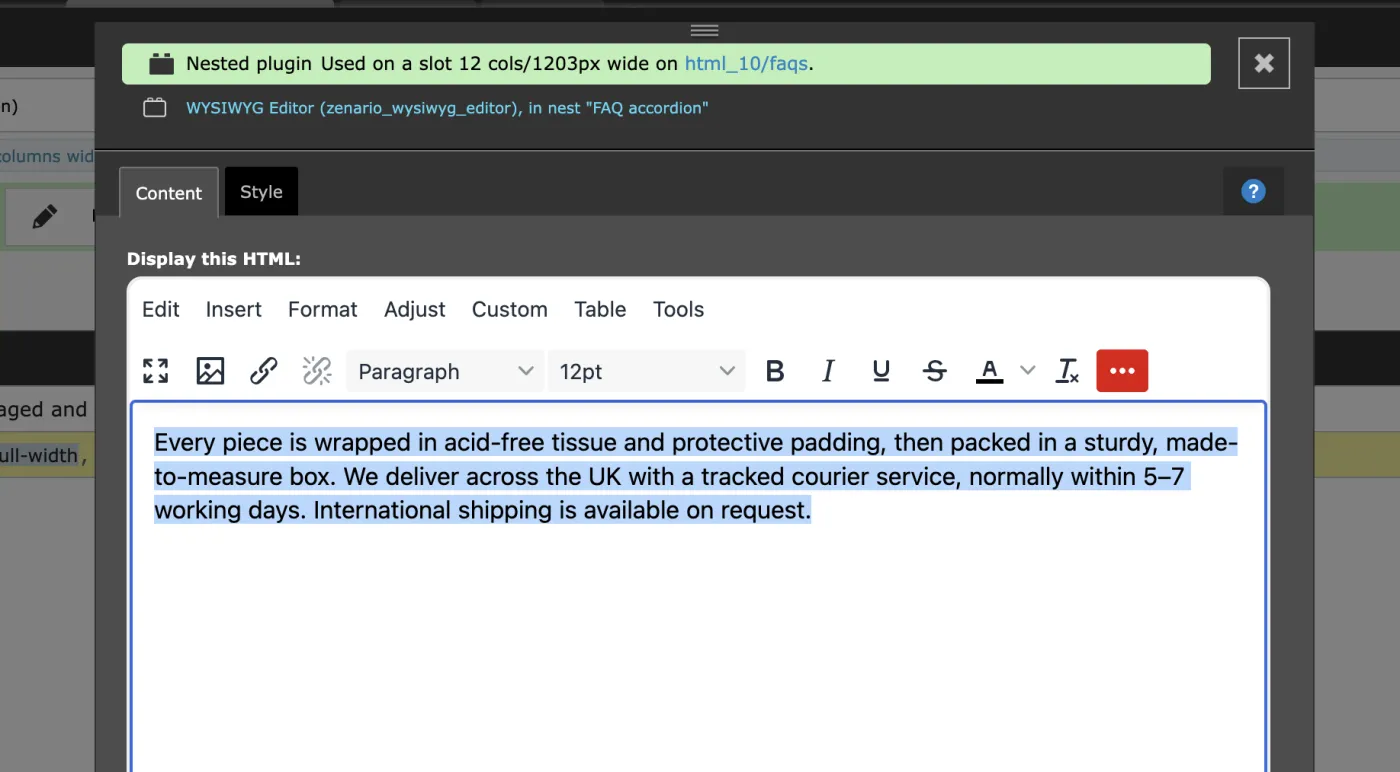
Note: You can put more than one plugin on a slide, for example a WYSIWYG editor and a Banner plugin. - To add the next slide, click "+ Add slide" and repeat steps 2 to 4 for each panel.
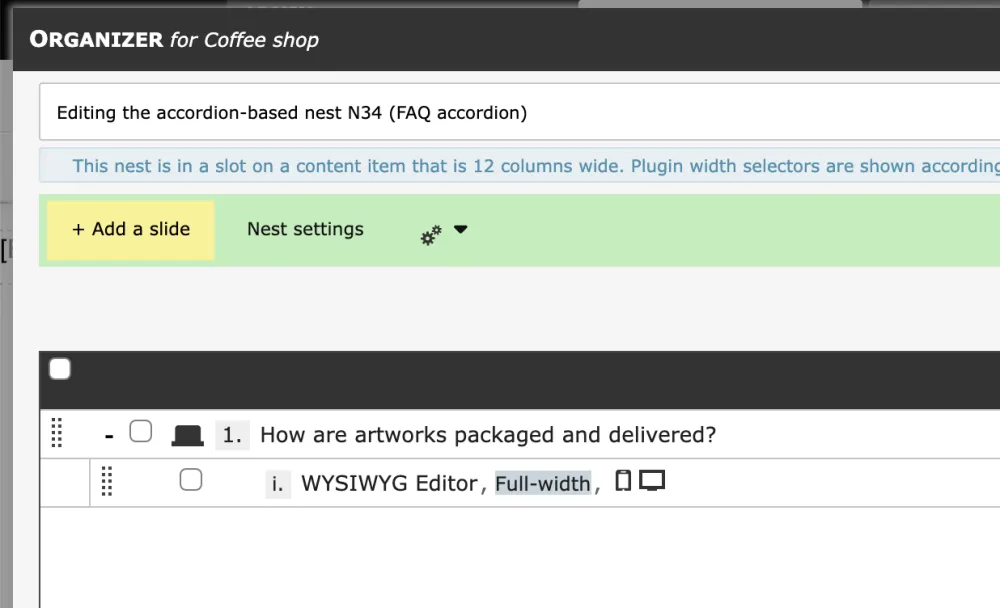
- To change the order of the panels, drag the slides into the order you want.
- Close the nest editor to return to the page.