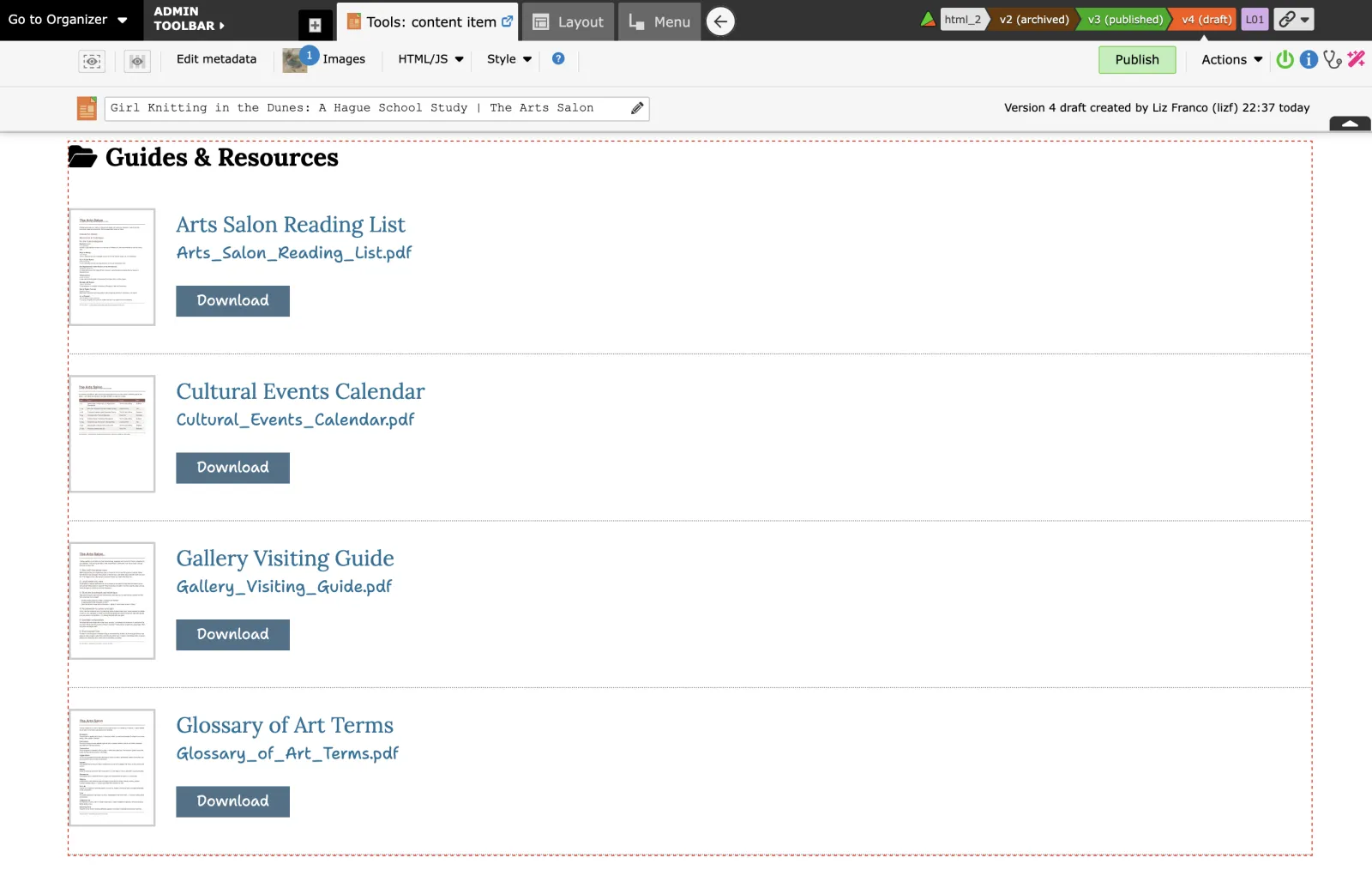
Adding files for download
Start by uploading the files to the library. Then add a Document Container (hierarchical documents) plugin to the page.
Uploading files to the Library
- Go to Organizer > Library > Hierarchical documents.
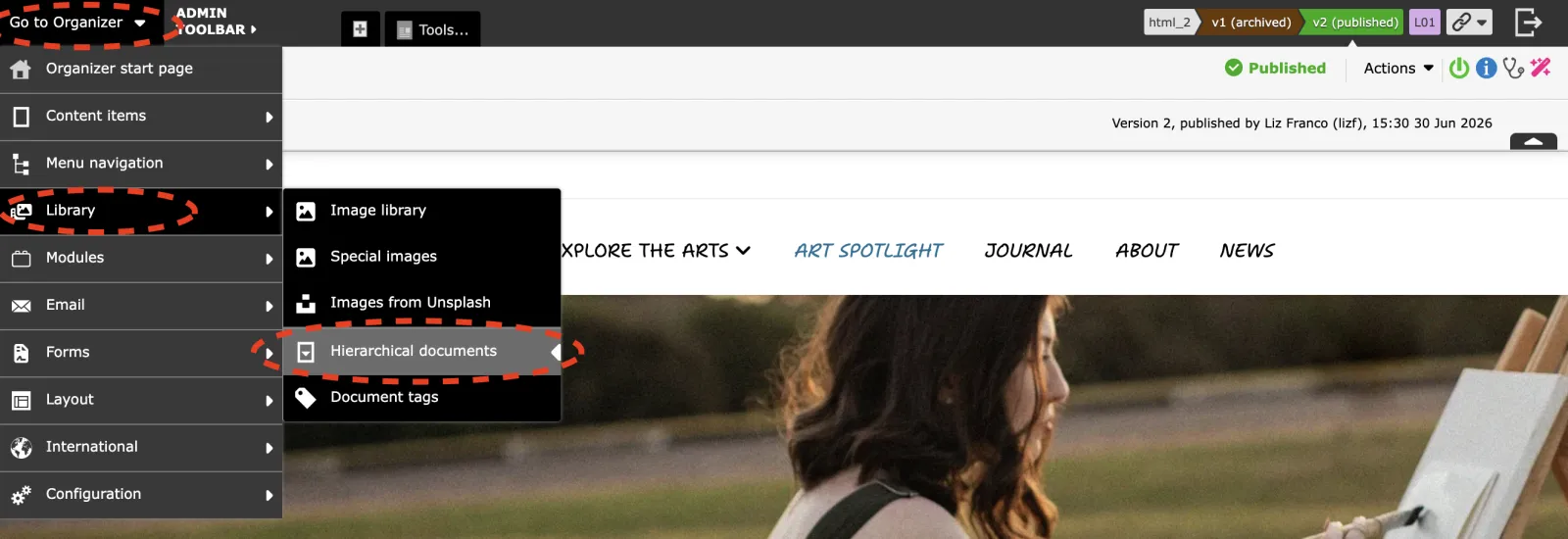
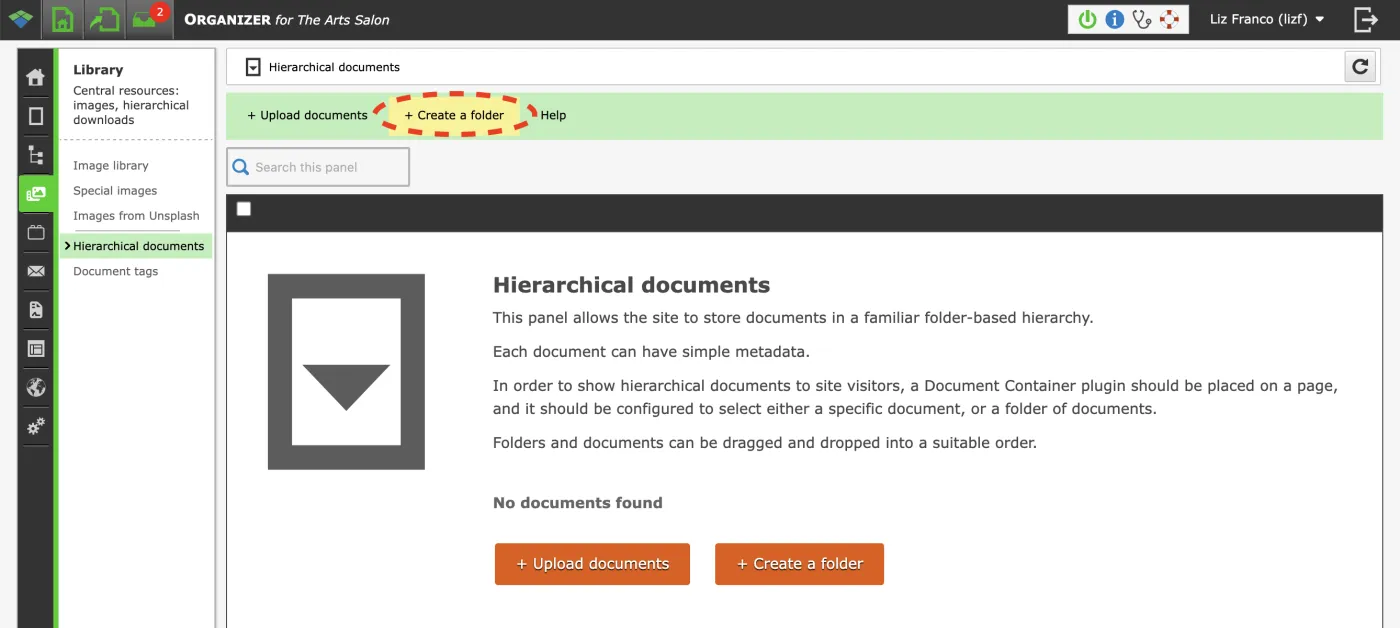
- Click '+ Create a folder' button.
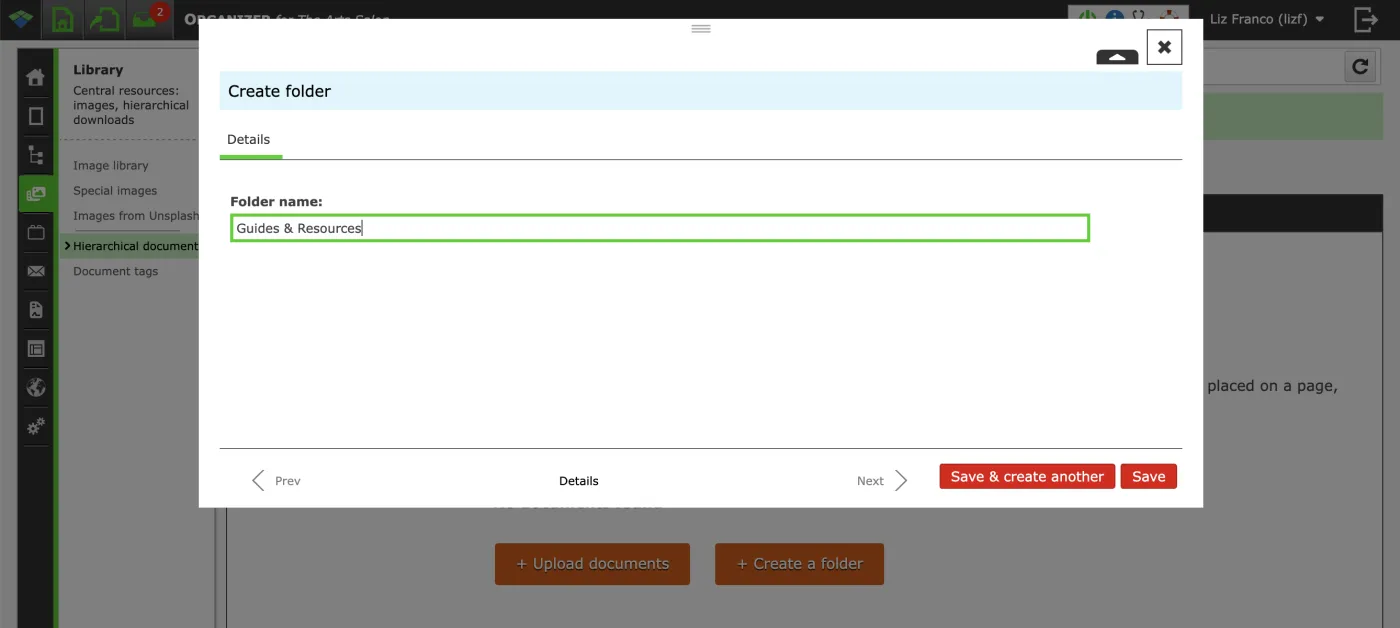
- Enter a name for the folder. Click 'Save' button.
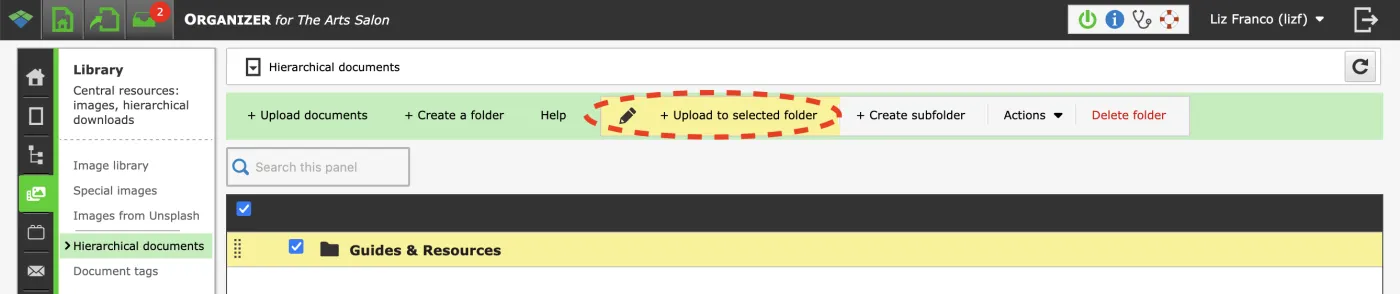
- Click '+ Upload to selected folder' button.
- Click 'Upload...' button. Select the document(s) to upload. Note you can select various files at once.
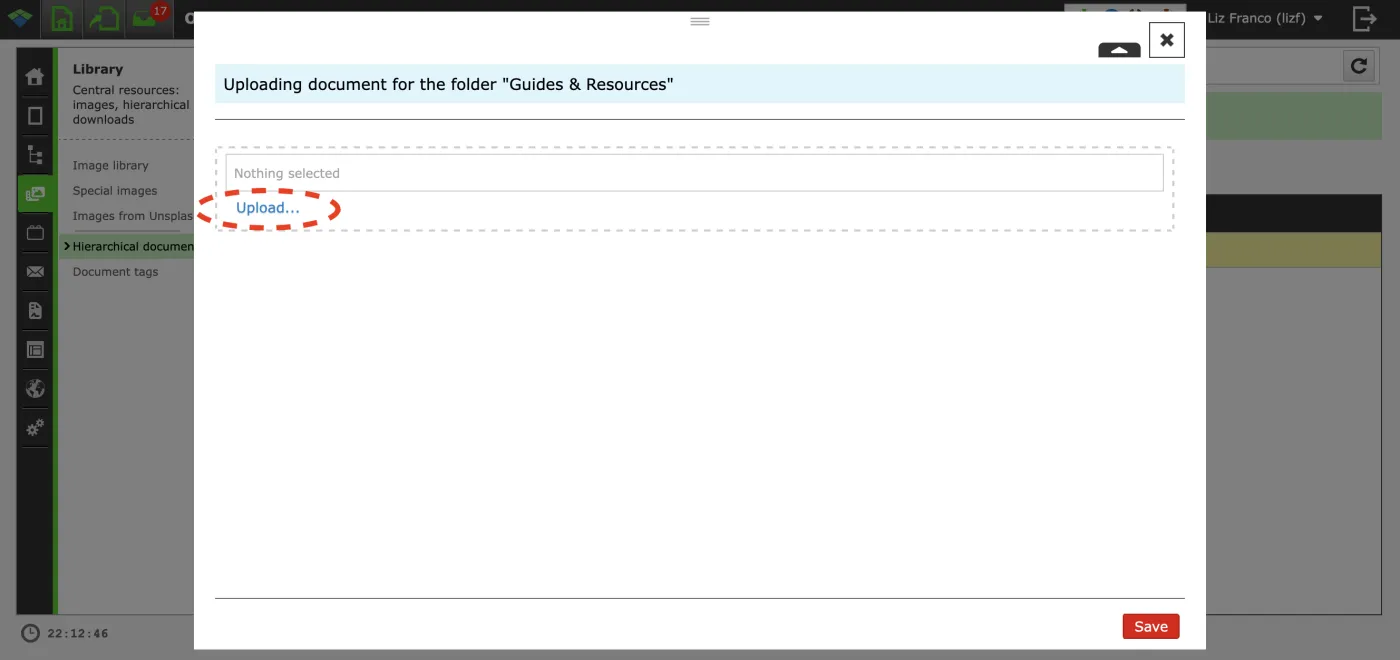
- Click 'Save' button.
Adding a Document Container (hierarchical documents) plugin
- Select the "Tools" mode on the Admin Toolbar.

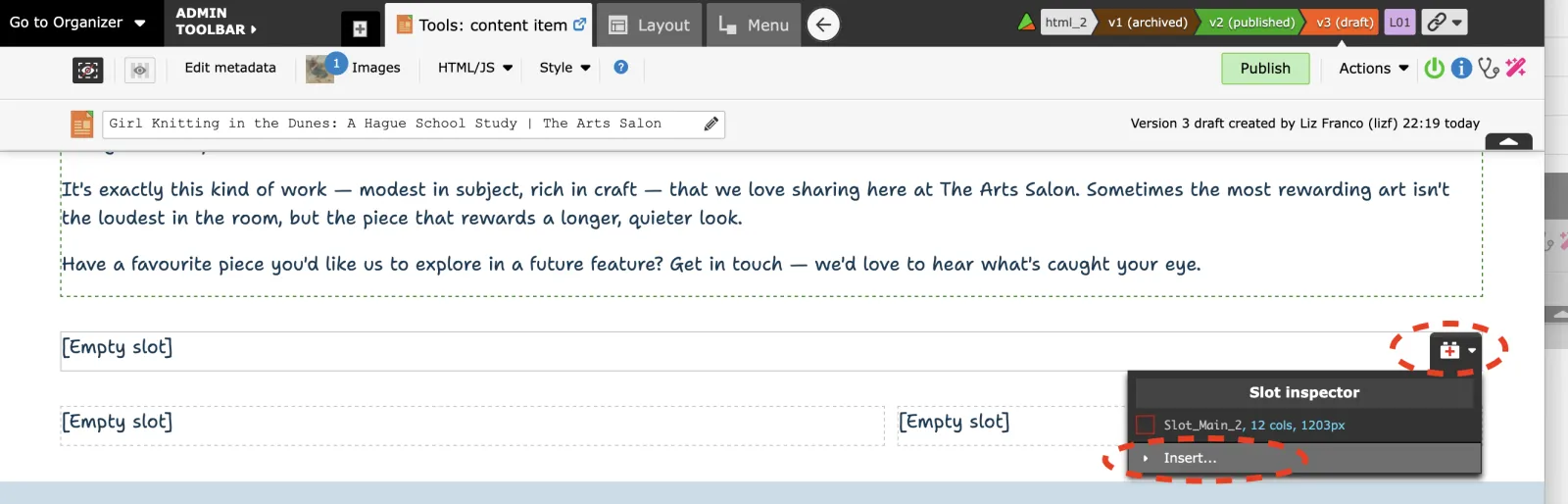
- Click on the icon to Show mobile and empty slots.

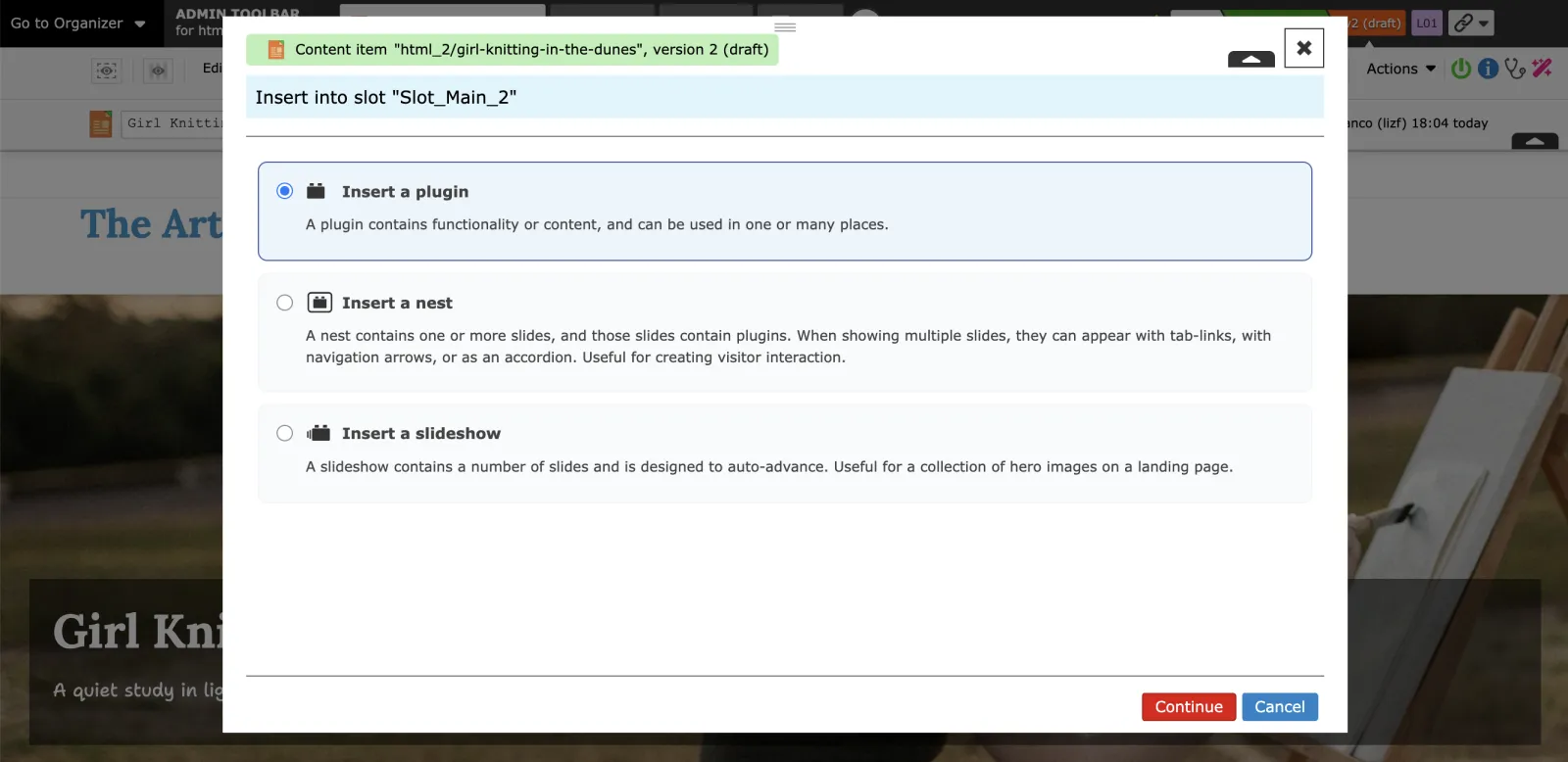
- In the page, find an empty slot where you want to place the plugin, and select "Insert..".
If prompted, make a draft.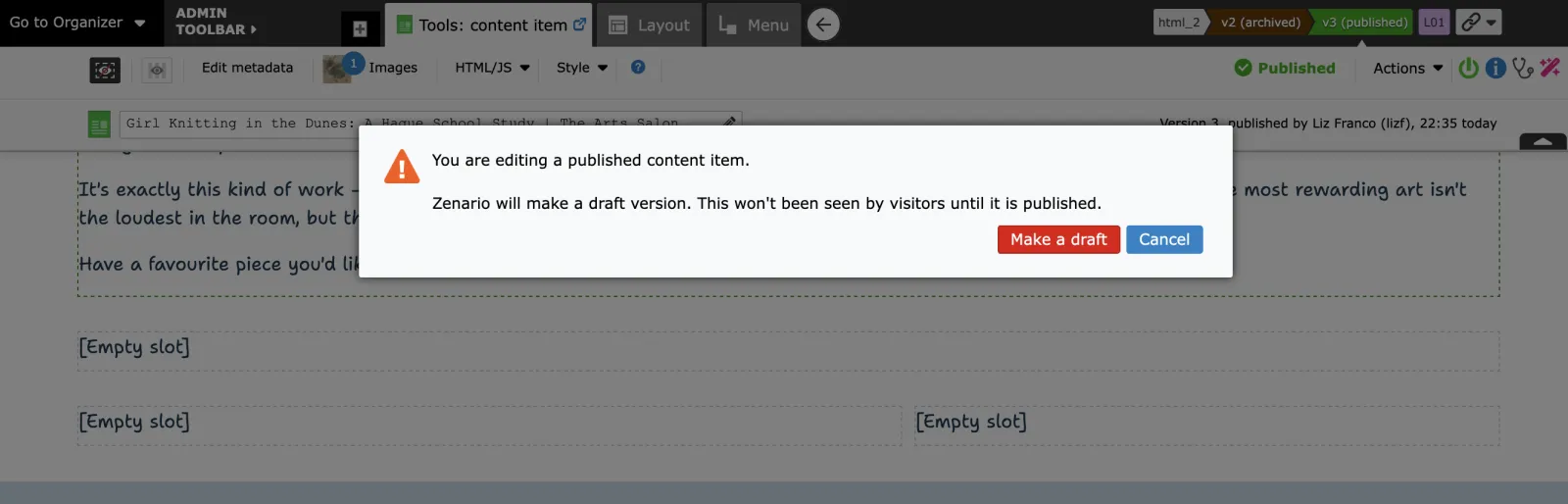
- Choose Insert a Plugin from the list. And click 'Continue' button.
6. Click the folder icon next to Document Container (hierarchical documents) to view its plugins.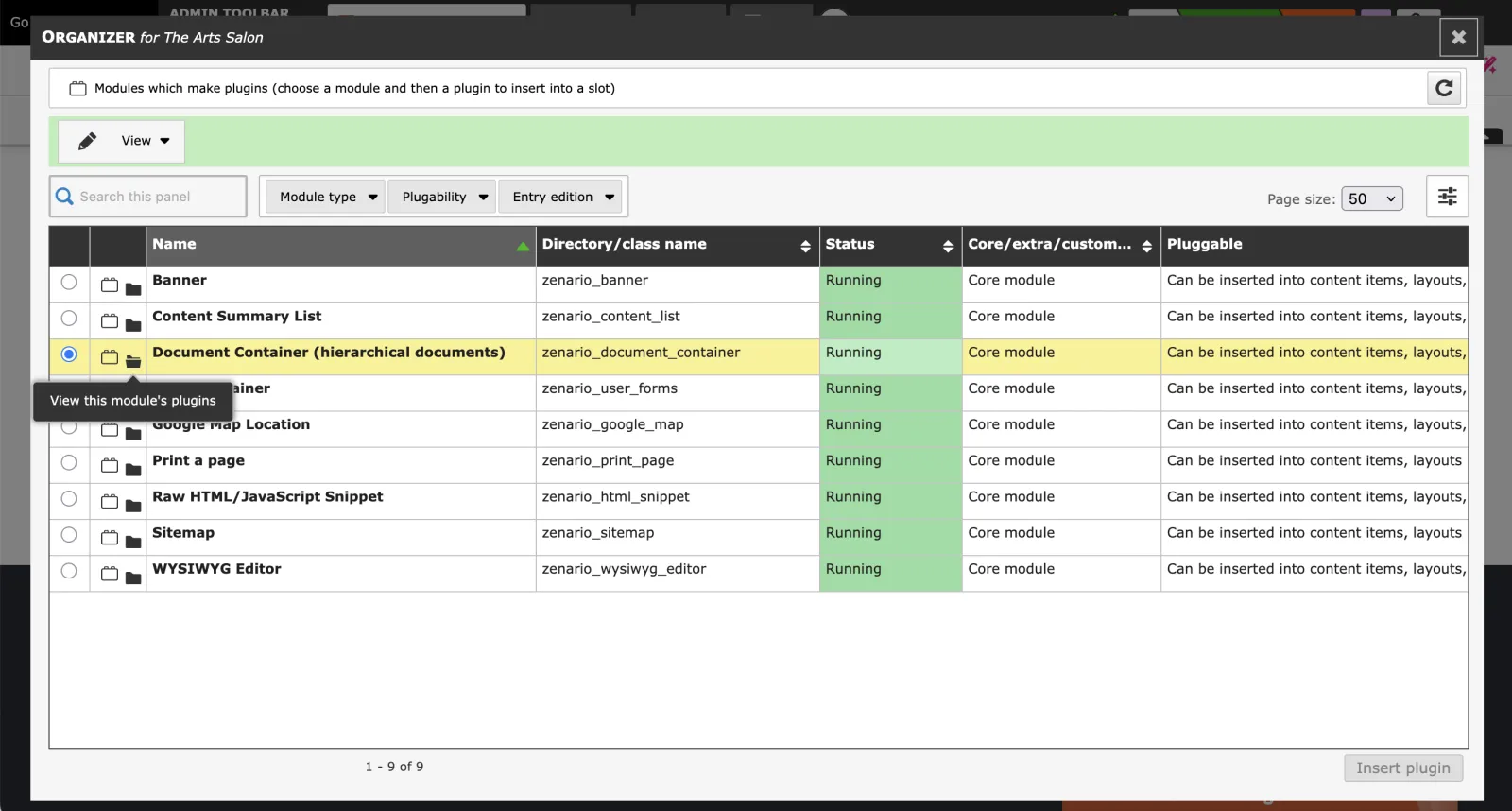
You can pick an existing plugin, duplicate one, or create a new plugin. - If creating a new plugin, configure its settings. Enter a name for the plugin. And click 'Select folder or document button'.
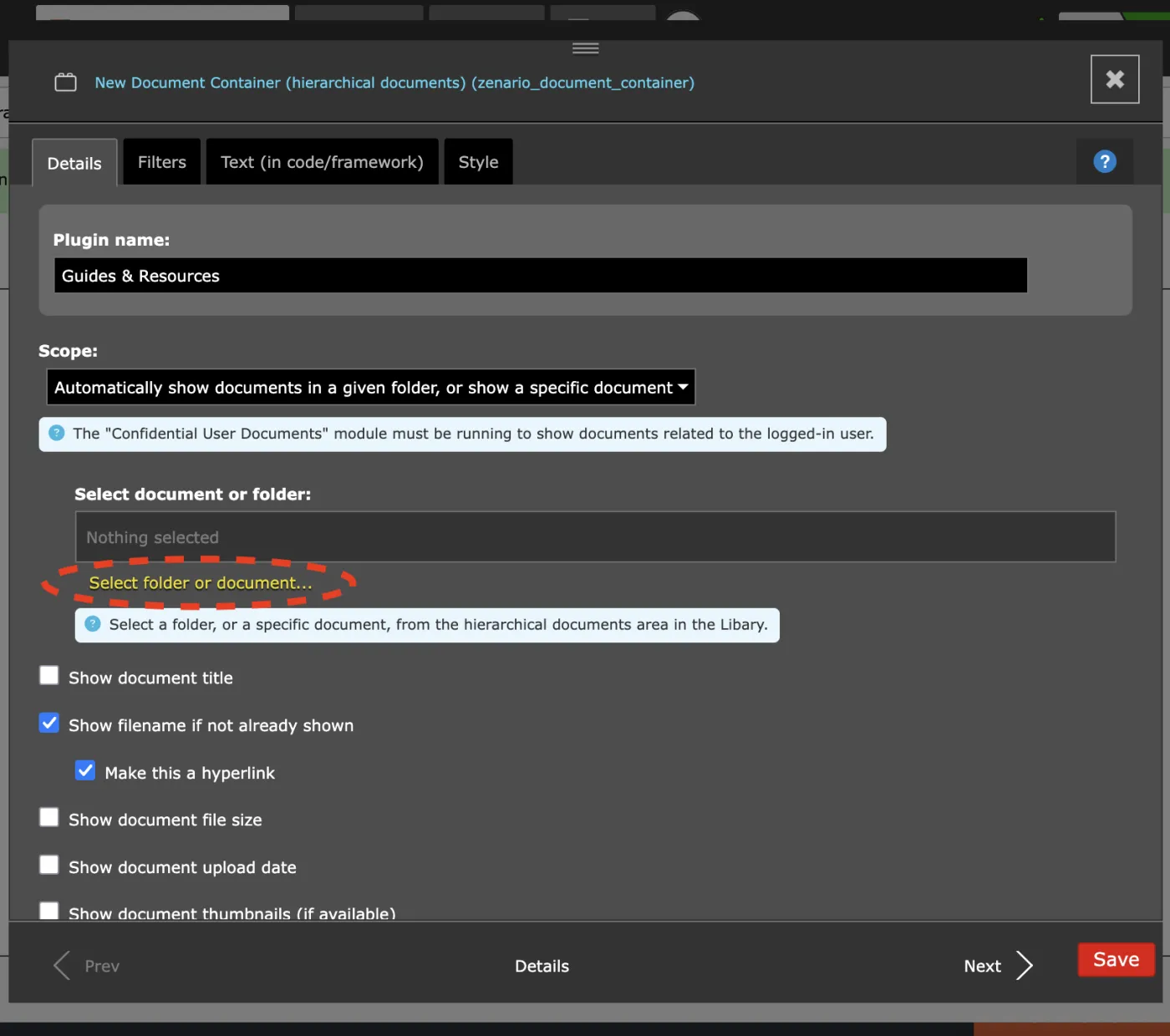
Select either the folder or the document to display. Set additional information like document title, thumbnail, buttons...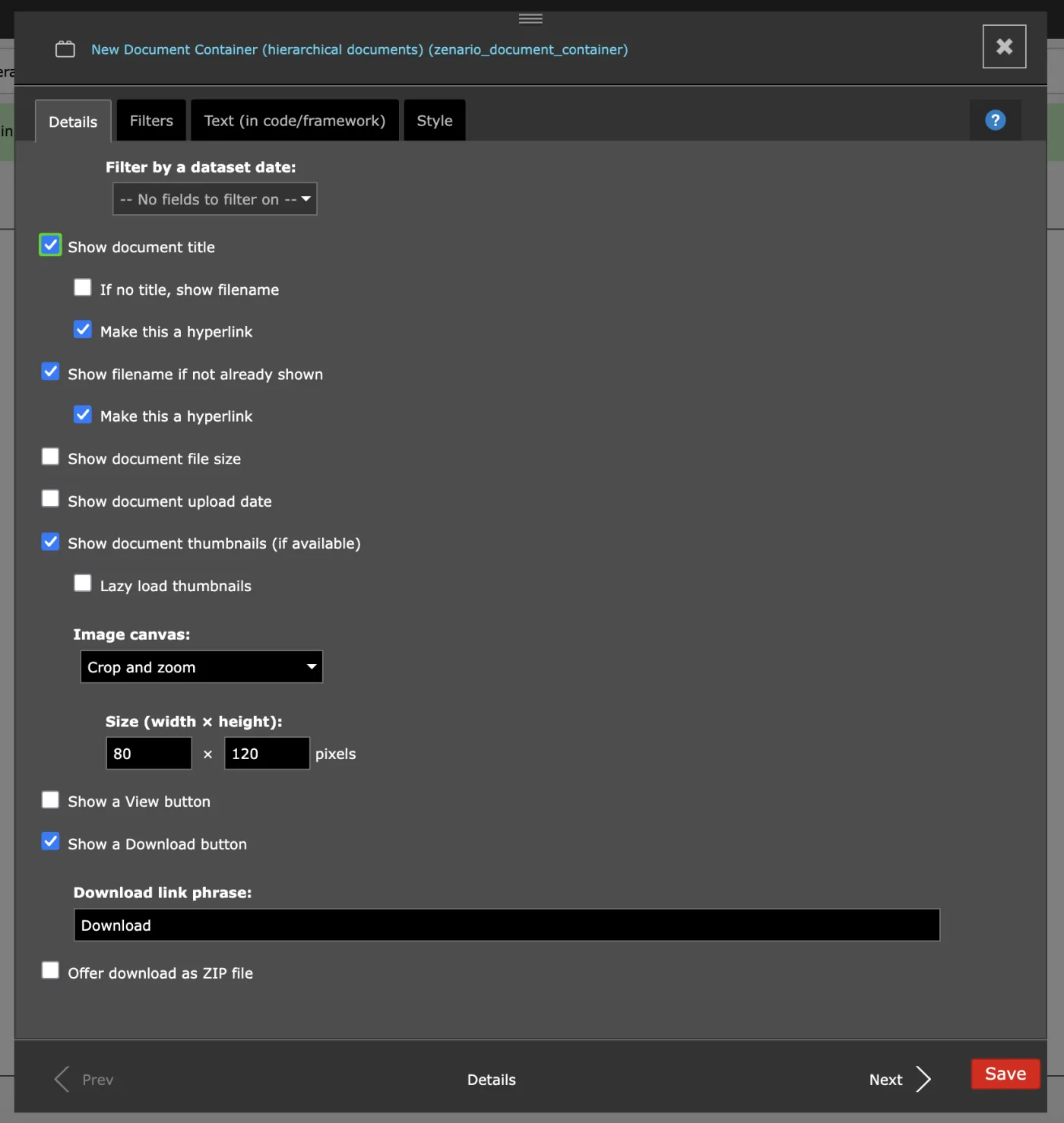
9. Click "Save" button.
10. Click "Insert plugin" button.