
Configuring cookie control and privacy settings for GDPR compliance
What a Visitor Sees on Arrival
When someone lands on a Zenario-powered site for the first time, the very first thing they may encounter—before the page has even finished loading its content—is a cookie notice. This isn't an afterthought bolted on by a third-party plugin; it's a native part of Zenario, designed to help site owners meet data protection legislation such as the UK GDPR and PECR.
What the visitor actually sees depends on how the site has been configured (more on that below), but broadly there are two possible experiences:
- A simple "Continue" button (implied consent mode), informing the visitor that the site uses cookies and linking through to the privacy policy. The visitor can dismiss this and carry on browsing; cookies are already being set in the background.
- A two-step explicit consent prompt (explicit consent mode), which stops non-essential cookies from being set until the visitor makes a choice. A small box appears first, offering "Accept" or "Manage cookies". Choosing "Manage cookies" opens a larger box with more detail, where the visitor can select exactly which types of cookies they're happy to accept.
If the visitor followed a link containing a page anchor (e.g. a link to a specific section of a page), Zenario is careful not to lose that anchor once the visitor has clicked through the cookie prompt—so they land exactly where they expected to.
Until a choice is made (in explicit consent mode), Zenario deliberately withholds any JavaScript that's been flagged as cookie-issuing, so nothing like analytics or embedded third-party content (e.g. an iframe) fires prematurely.
Accessing Cookie Settings in Organizer
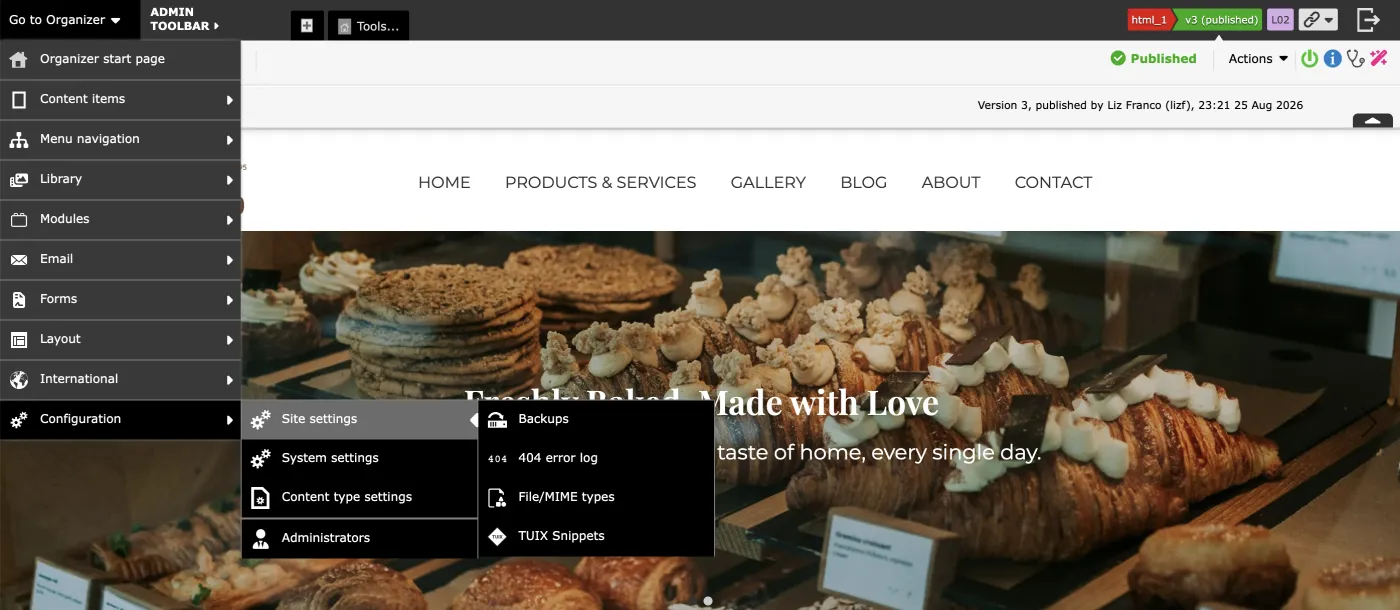
The cookie configuration lives in the site-wide settings area of Organizer.
To find it:
- Go to Organizer > Configuration > Site settings.
- Click Cookie control.
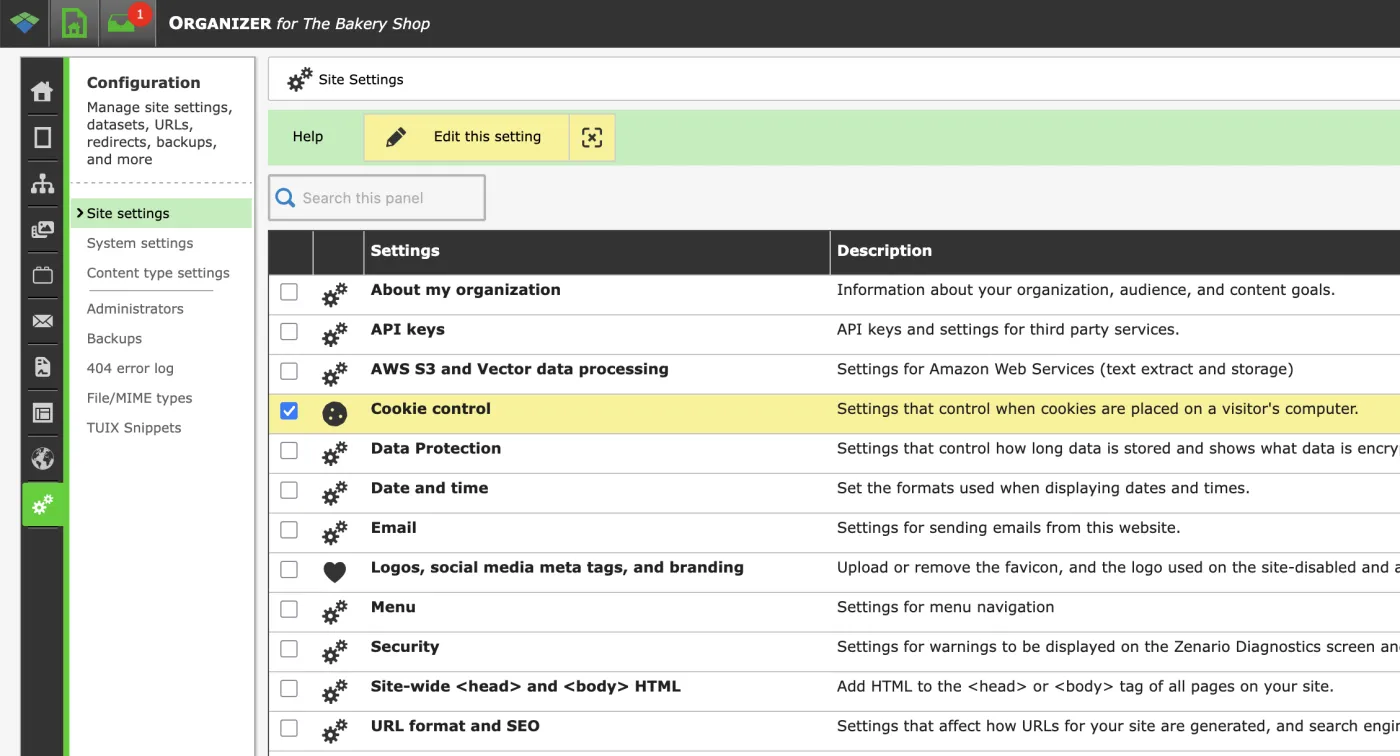
Inside this panel you'll find three tabs: Cookie policy, reCaptcha policy, and Timeouts. The most important one is Cookie policy, which is where the overall consent mode is set via the "Cookie policy" dropdown.
Different Policies for Cookie Consent
The Cookie policy dropdown in the Cookie control panel offers three options. Each strikes a different balance between simplicity and legal compliance, so it's worth understanding what each one actually does before choosing.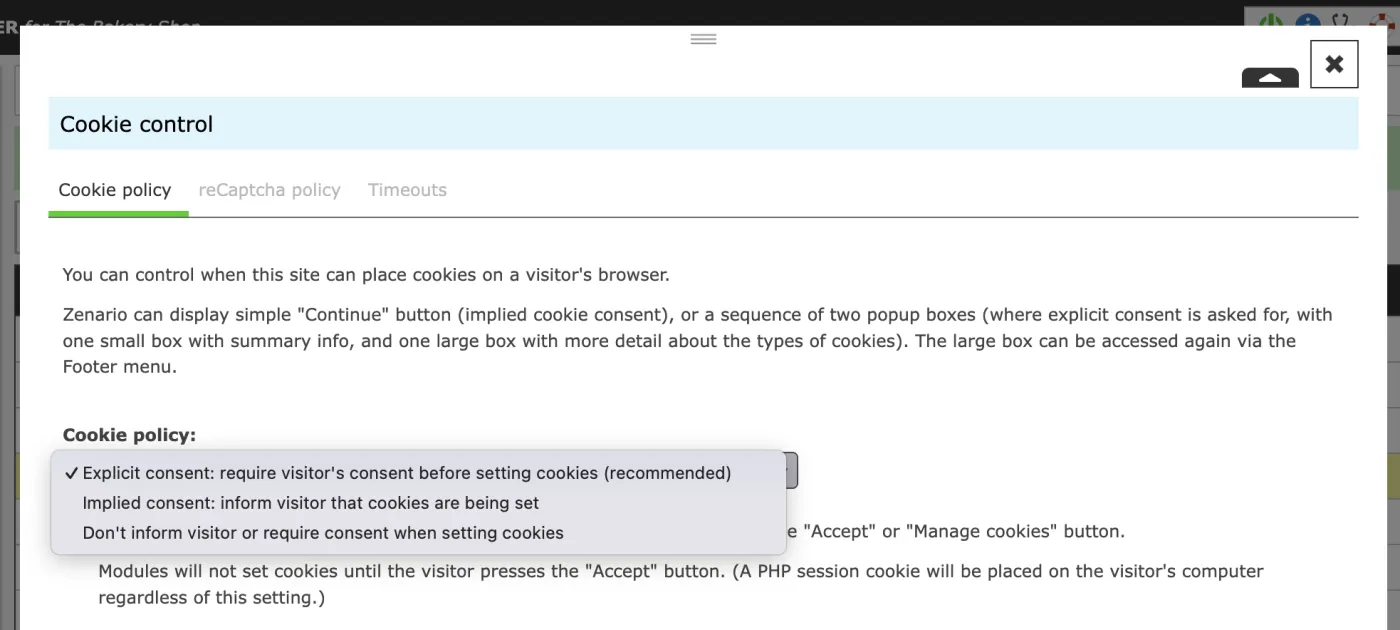
1. Explicit consent: require visitor's consent before setting cookies (recommended)
This is the default option on a freshly installed site, and the one recommended for best legal compliance. It works as a sequence of two popup boxes:
- A small box appears on every page of the site, with summary information and two buttons: Manage cookies and Accept all. Optionally a "Necessary only" button can also appear.

- Clicking "Manage cookies" opens a cookie settings box with more detail about the different types of cookies used, letting the visitor choose exactly which categories to allow.
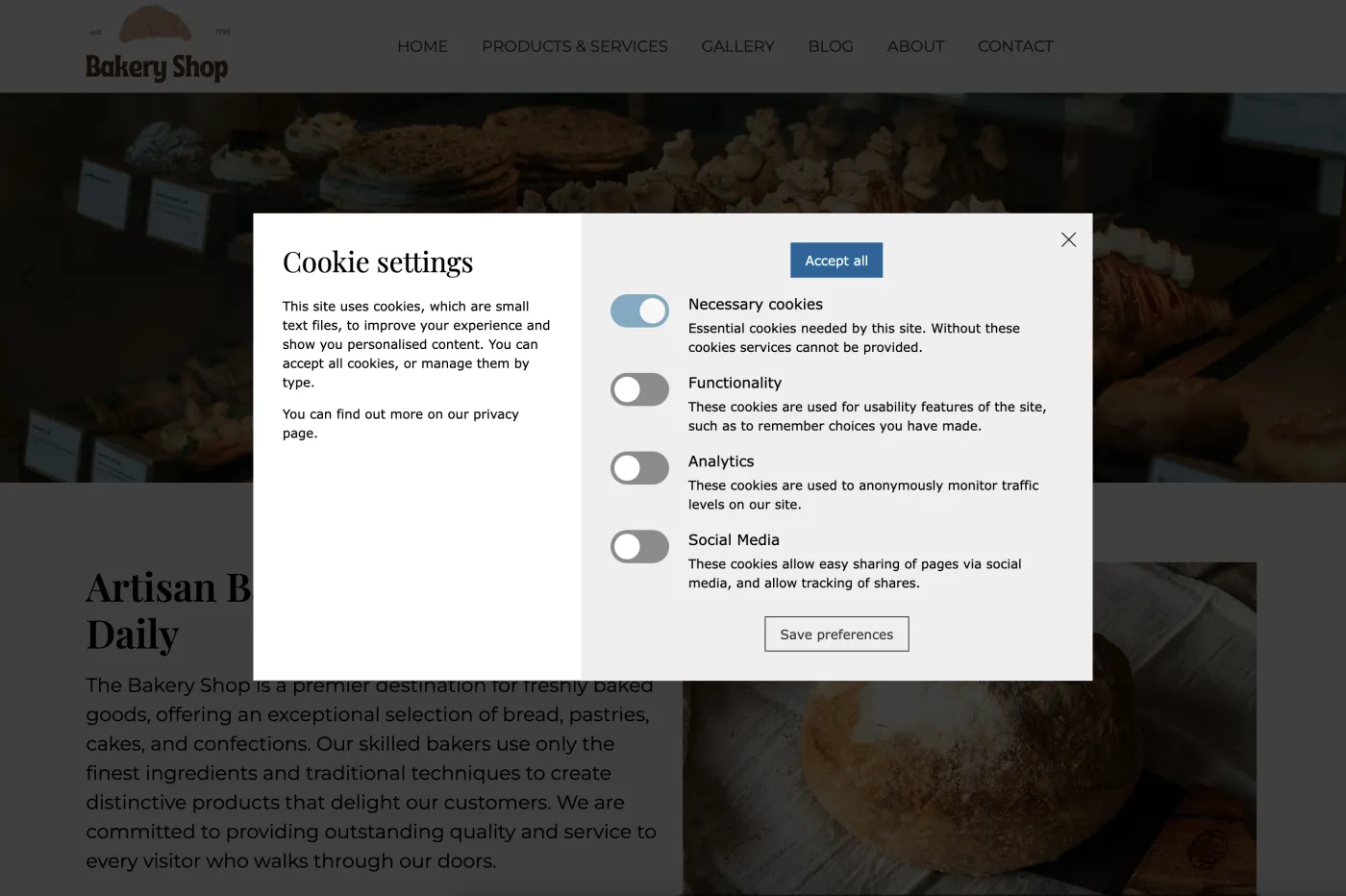
- This cookie settings box remains accessible at any time afterwards via the "Manage cookies" link in the site's footer menu, so visitors can change their mind later.

2. Implied consent: inform visitor that cookies are being set
Here, Zenario displays a simple "Continue" button on the first page a visitor sees, referencing the site's use of cookies and linking to the privacy policy. The visitor isn't required to actively accept anything—clicking "Continue" (or simply carrying on browsing) is treated as consent.
It's a lighter-touch approach, and not likely to be legally adequate for many jurisdictions. The site owner should check the policy is satisfactory. They must also make sure the link to privacy policy is set up correctly.

3. Don't inform visitor or require consent when setting cookies (not recommended)
In this mode, Zenario places cookies on a visitor's browser silently, with no warning or banner at all. Because most data protection regimes (GDPR/PECR in the UK and EU, for instance) require some form of notice or consent before non-essential cookies are set, this mode should really only ever be used during early development, never on a live site.
Cookies issued by Zenario itself
Regardless of the mode chosen, a small number of functional cookies are used by the core system:
| Cookie | Purpose |
|---|---|
z_session_id |
Essential session cookie; always set |
z_cookies_accepted |
Records that the visitor has accepted cookies |
z_admin_last_username |
Stores the administrator username after logging in |
z_admin_2fa_1 |
Set once an administrator passes two-factor authentication |
z_admin_login_shown |
Set when an administrator logs in with "remember me" enabled |
In Summary
For most live sites, explicit consent is the setting to choose: it gives visitors real control, holds back non-essential cookies until they've made a choice, and keeps the site on the right side of GDPR/PECR requirements. To achieve this better compliance the site owner must make sure any cookie-issuing JavaScript is added via the "Cookie-creating HTML/JS" option rather than the general head/body code areas, so it's properly withheld until consent is given.
If you're not sure your current cookie settings meet the latest legal requirements, read our guide to the new cookie and GDPR rules for 2026 before choosing a policy.
