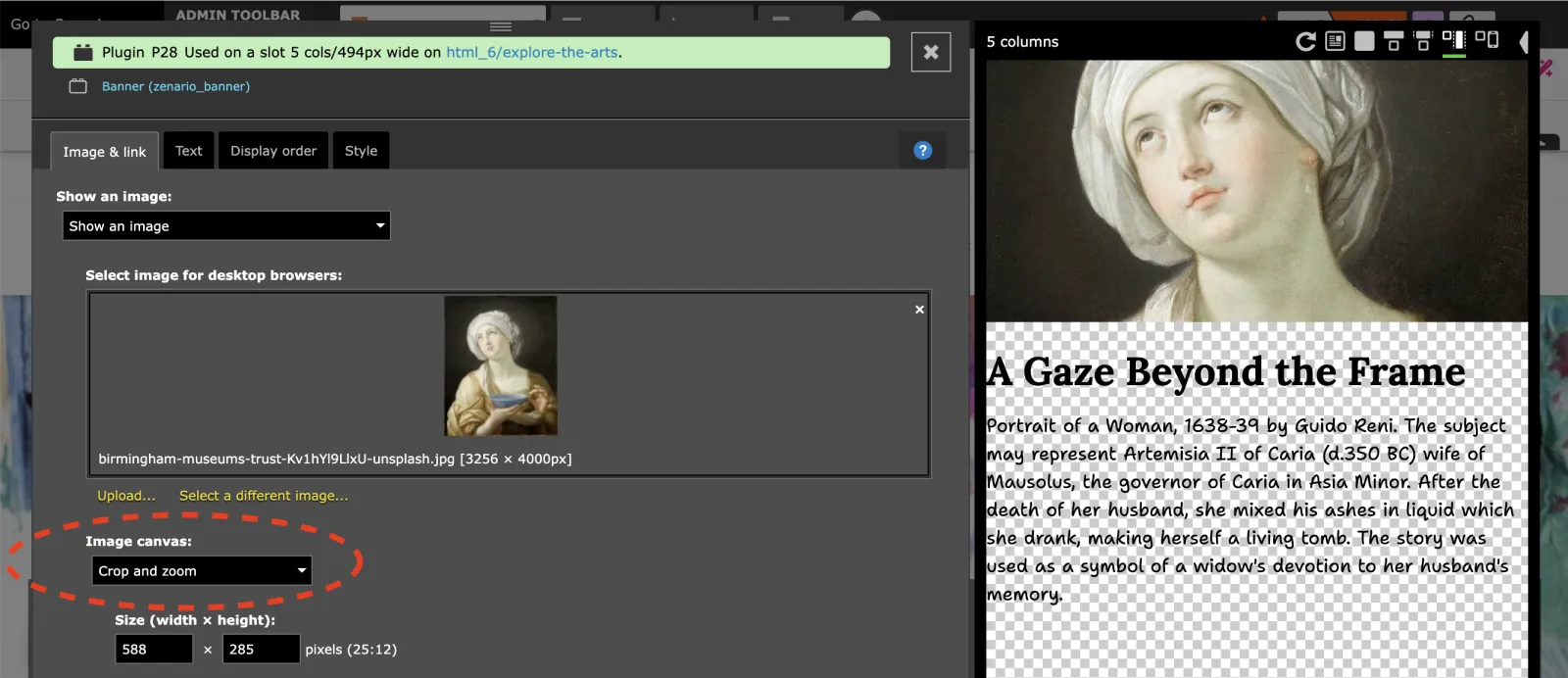
Adjusting the framing of an image
To adjust the framing (cropping) of an image in Zenario:
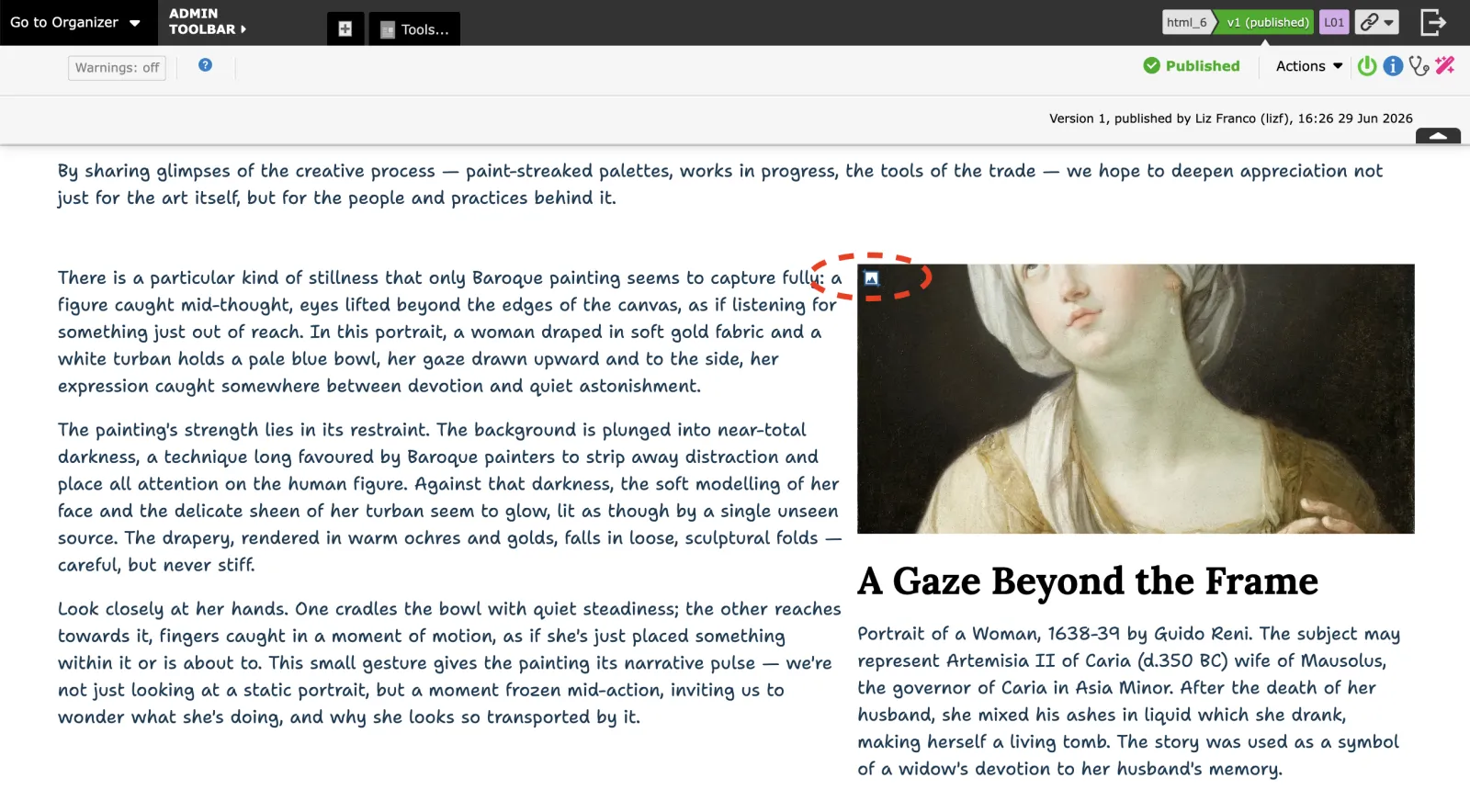
- Hover over the image you want to adjust.
- Click the image properties button on the image.
- The image cropping interface will appear, showing:
- A draggable crop box over your image.
- Handles on the corners and edges to resize the crop area.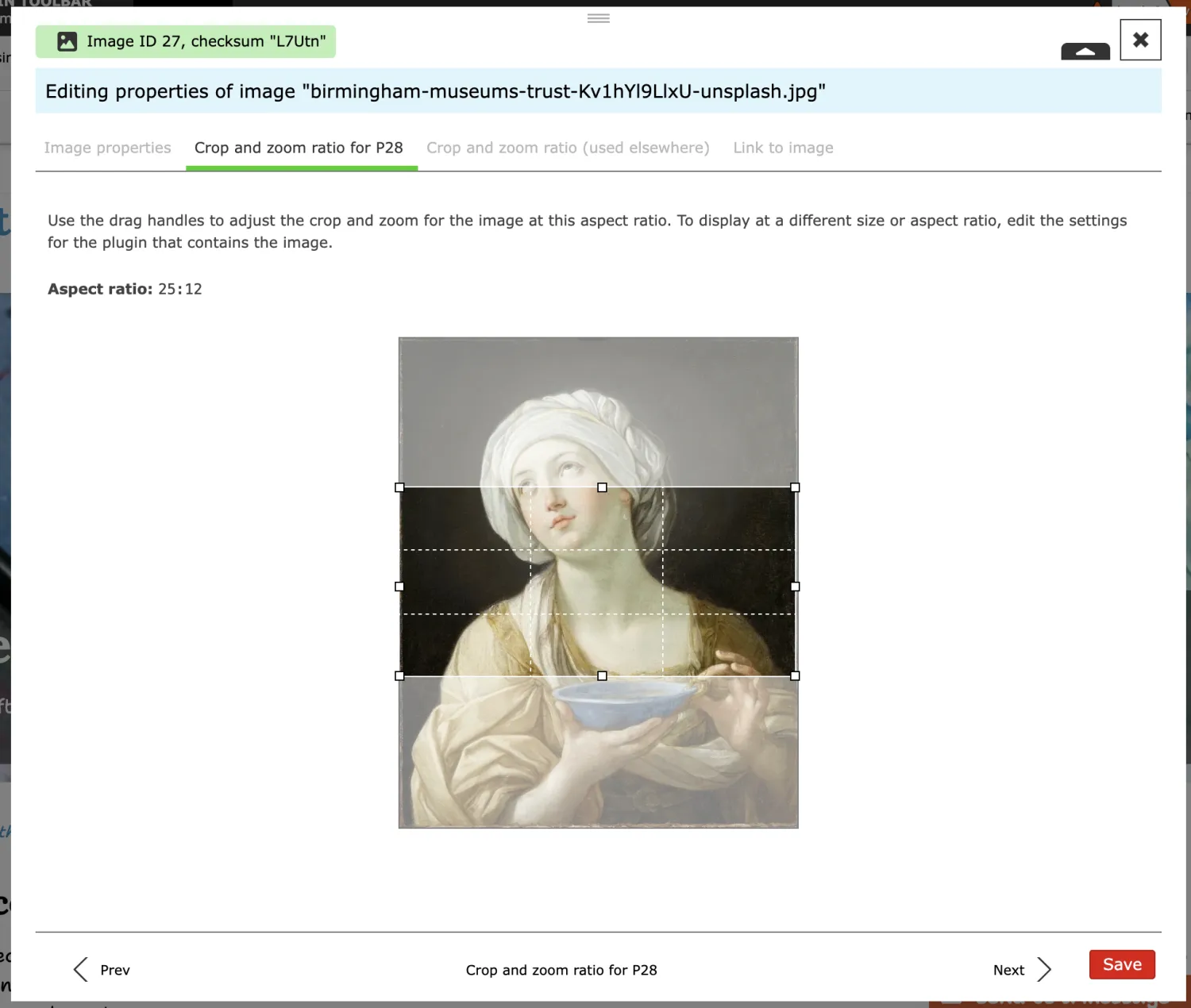
- Adjust the crop area:
- Drag the crop box to reposition which part of the image is shown.
- Drag the handles to resize the crop area.
- The area inside the box is what will be displayed to visitors.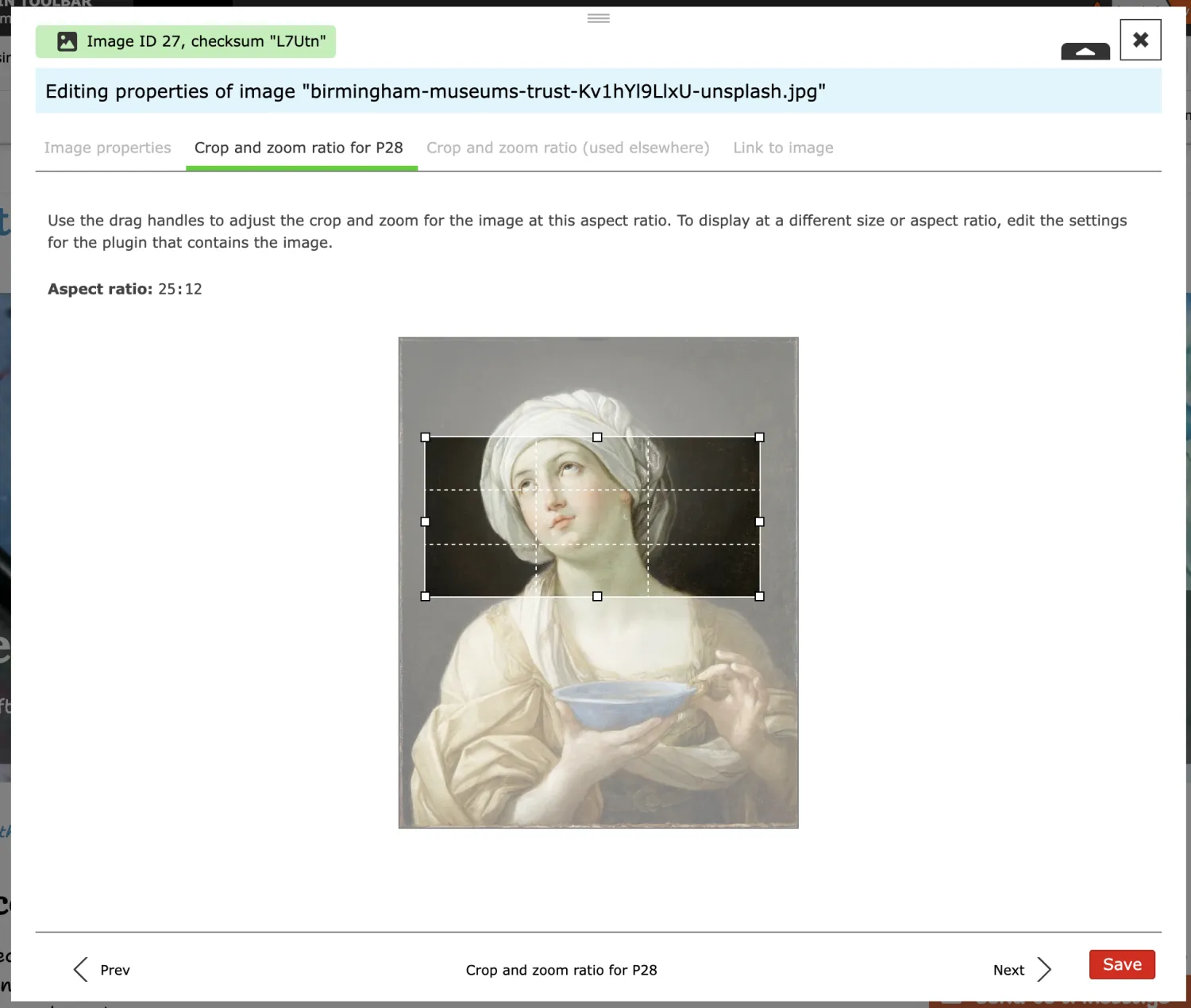
- Save your changes by clicking the Save button.
Note the plugin (e.g., Banner) must have size constraints configured with "Crop and zoom" mode enabled.