
How to use staging mode to share a draft with a colleague
Staging mode allows you to create a new content item (e.g. HTML page), or to make changes to an existing content item, and share it to a colleague who's not an administrator.
This is helpful in a corporate environment for getting comments or approval from a group of people.
Here's how to use staging mode.
1. Create a content item, such an an HTML page, and make sure it has a draft. (It can be a new content item at version 1, or later version).
Make sure there is some content in a WYSIWYG area.
2. Click the thumbs-up icon on the admin toolbar:
 3. You should see the staging mode box like this:
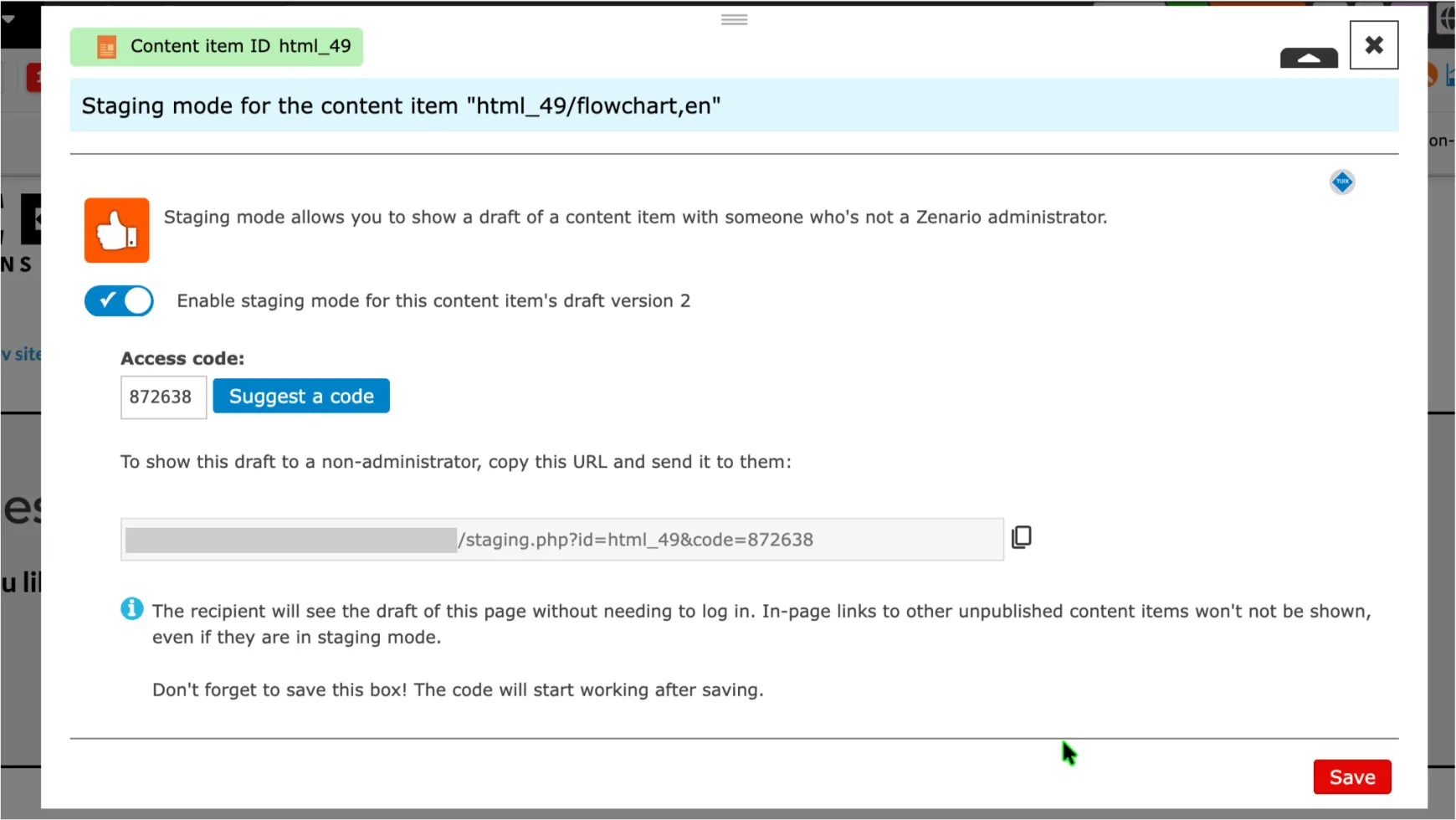
4. Click on the "copy" icon beside the URL, and then press "Save".
(Note that you must save the box before the URL will work).
5. Send an email to your colleagues, and press "paste" to paste in the URL.
6. Your colleagues can click the link, and they'll be able to view the draft version of the page.
Advanced use
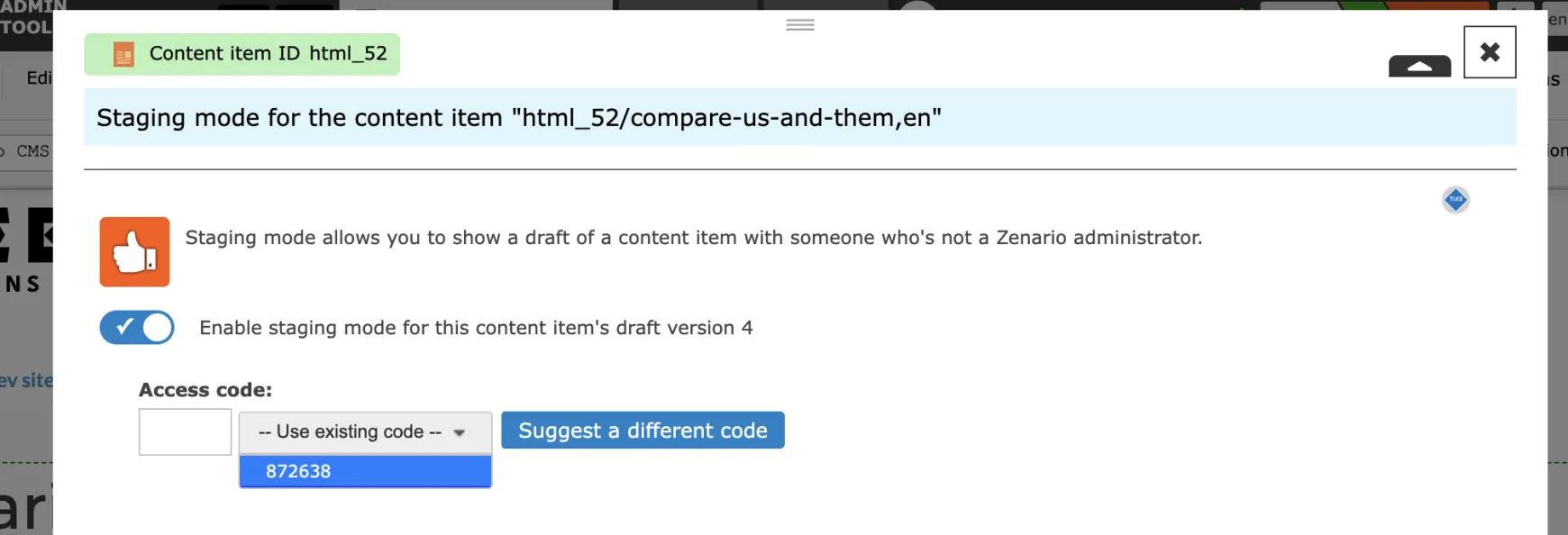
It's possible that you have several pages to share at once. You can use a single code for all of them.
When going to a different content item that's a draft, open the staging mode box in the usual way, but look for the already-existing code, like this:
To review what pages have a given staging access code, head over into the Organizer back-end, and in the Content Items area you should see the Access Codes panel.
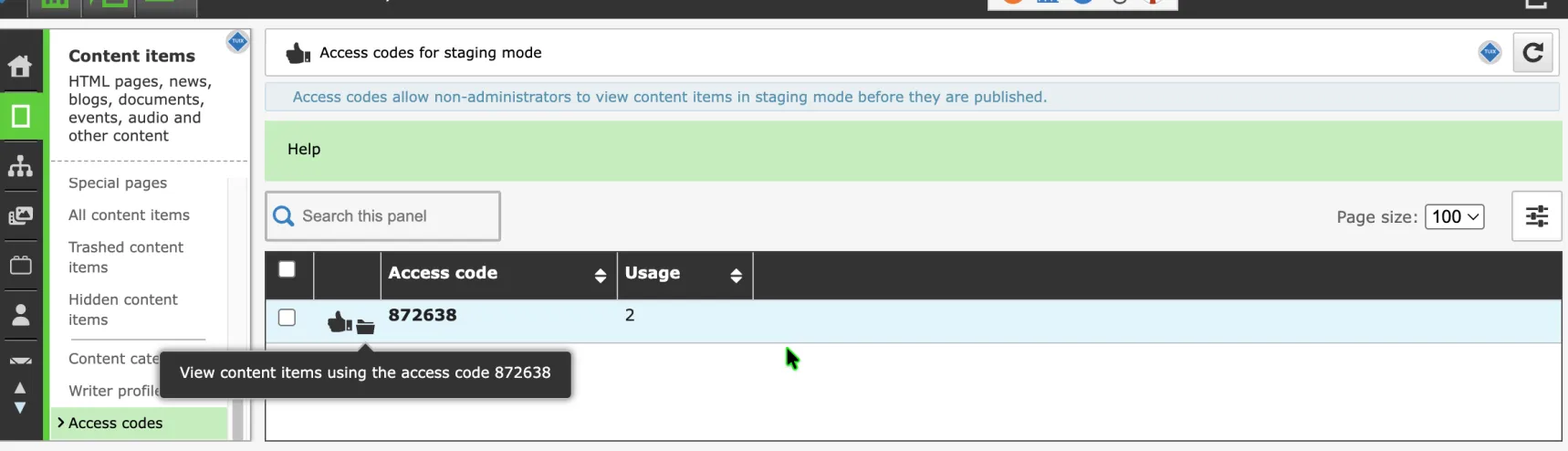
Click the folder icon to see a list of draft pages with this code.
