
Changing and resizing Banner images
To change the image or adjust its size in a Banner plugin:
Select the "Tools" mode on the Admin Toolbar.

Changing the image
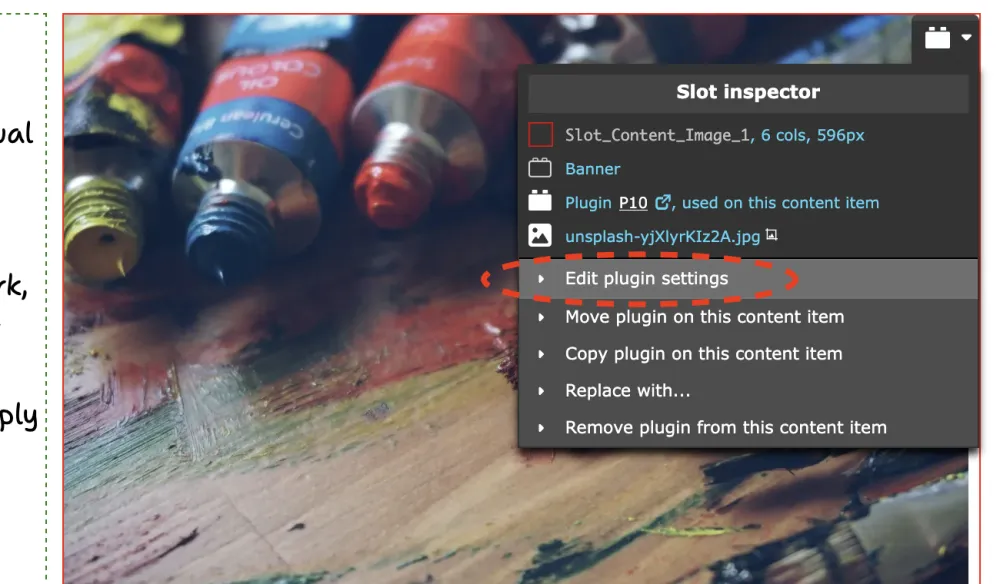
- Hover over the banner image — admin controls should appear. Click "Edit plugins settings". This opens the Banner settings panel.
- On the "Image & link" tab, click "Select a different image..." to select a different image from the Image Library, or click "Upload..." to add a new image.
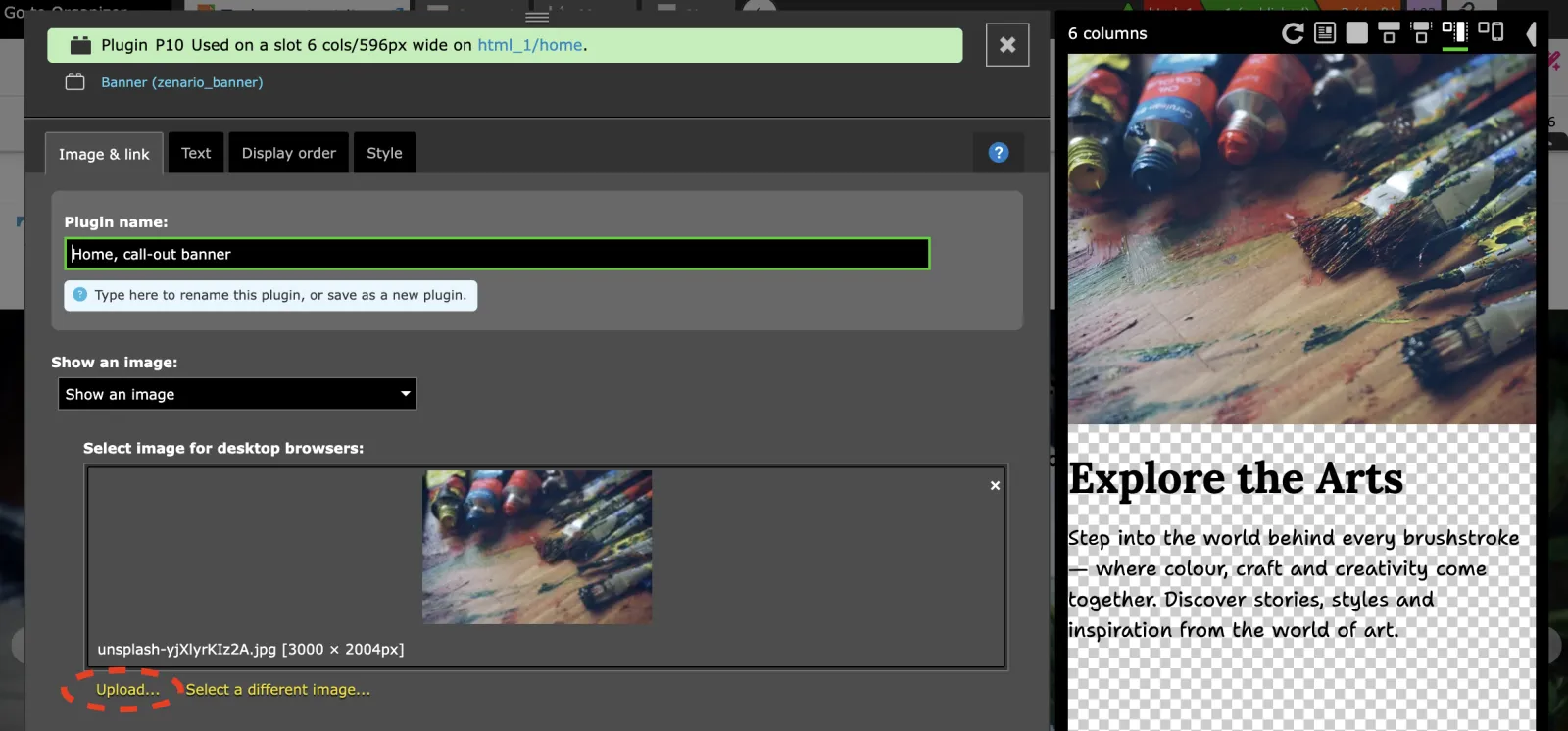
- Select your new image and save your changes.
Resizing the image
- In the same Banner settings panel, go to the "Image & link" tab.
- In the "Image canvas" section, set the size as needed.
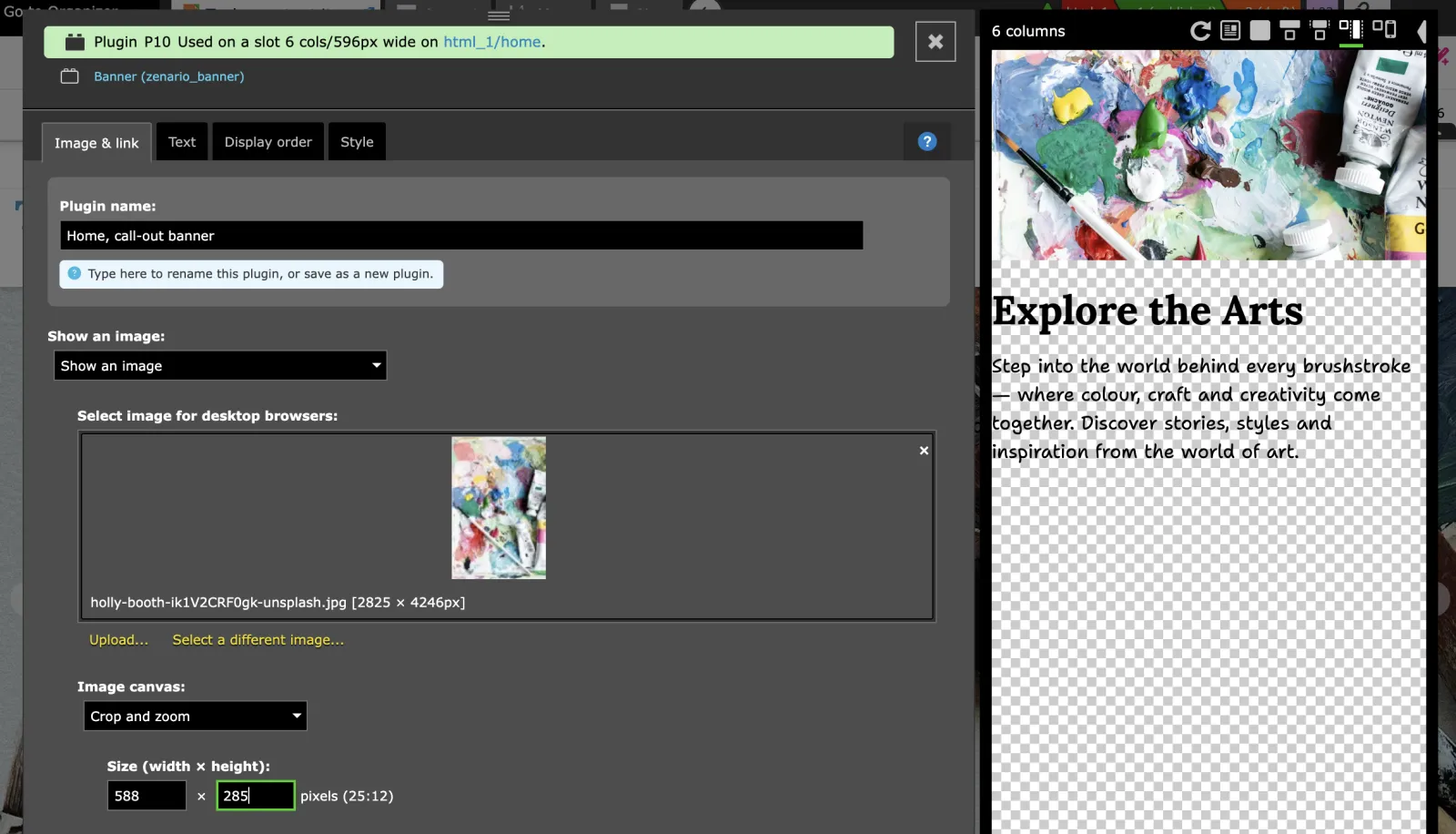
- Save your changes.
